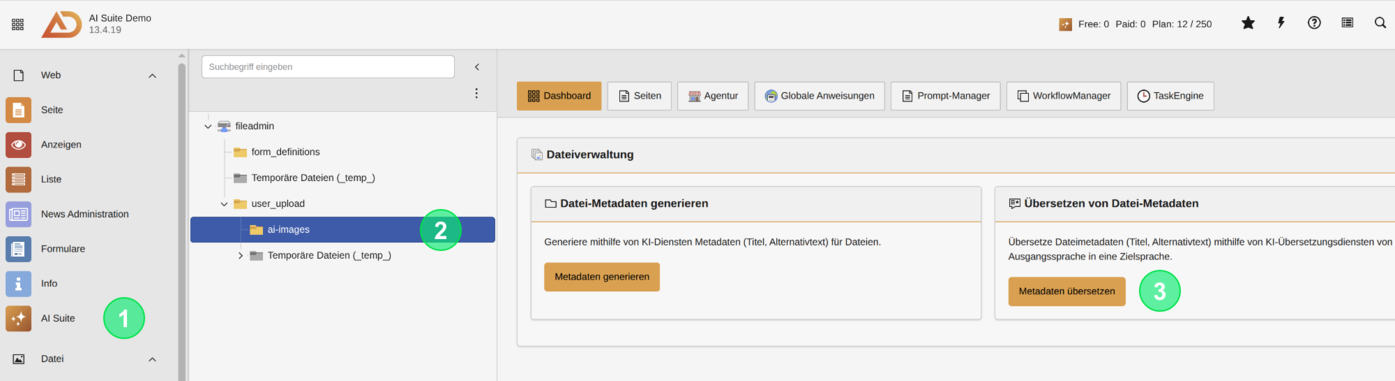
2. Structure of the initial input mask
- Under “Selected directories”, choose the directories you want to translate. “Add directory” opens the folder browser, and the cross on an entry removes a directory you already selected.
- Set the “Sub-level depth”. “Only the selected directories” corresponds to depth 0, and up to 5 sub-levels are possible.
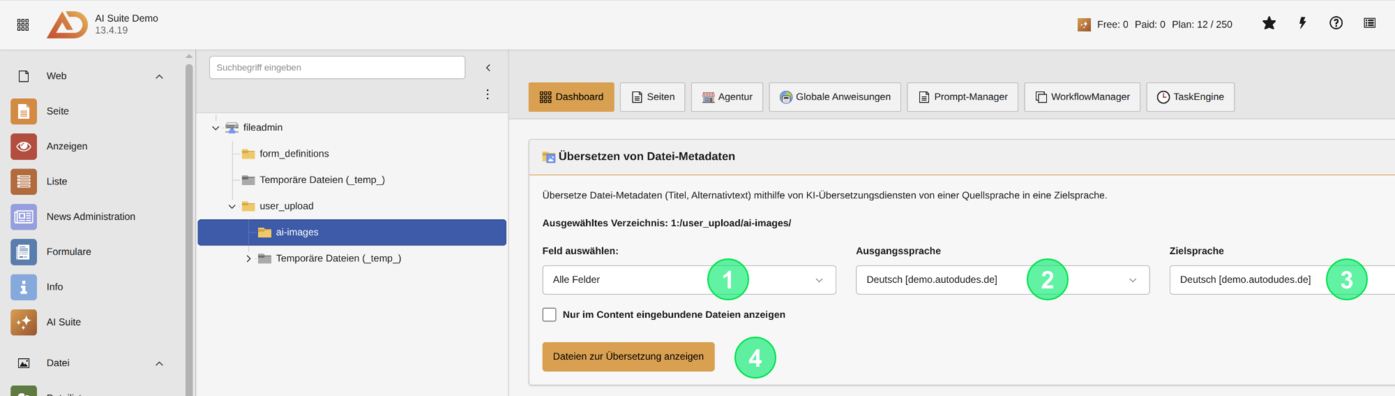
- Select the metadata field (by default, “All Fields” is selected here)
- Select the source language (all standard languages of your entry pages are available here)
- Select the target language (all translation languages of your entry pages are available here)
- Show only file metadata from included files if needed
- Display files for translation (the found files including title and alternative text are grouped by directory, and each group can be expanded and collapsed)
 Several directories at once
Since versions 14.4.0/13.16.0/12.22.0 you can select several directories at once. Each run covers a maximum of 50 directories and 1000 files. When that limit is reached, the AI Suite truncates the result list and tells you about it. Directories you have no permission for, or that cannot be found, are skipped and reported as well. Your selection is kept until you change it. If you open the WorkflowManager through the context menu of the file list, you start again with the directory selected there.
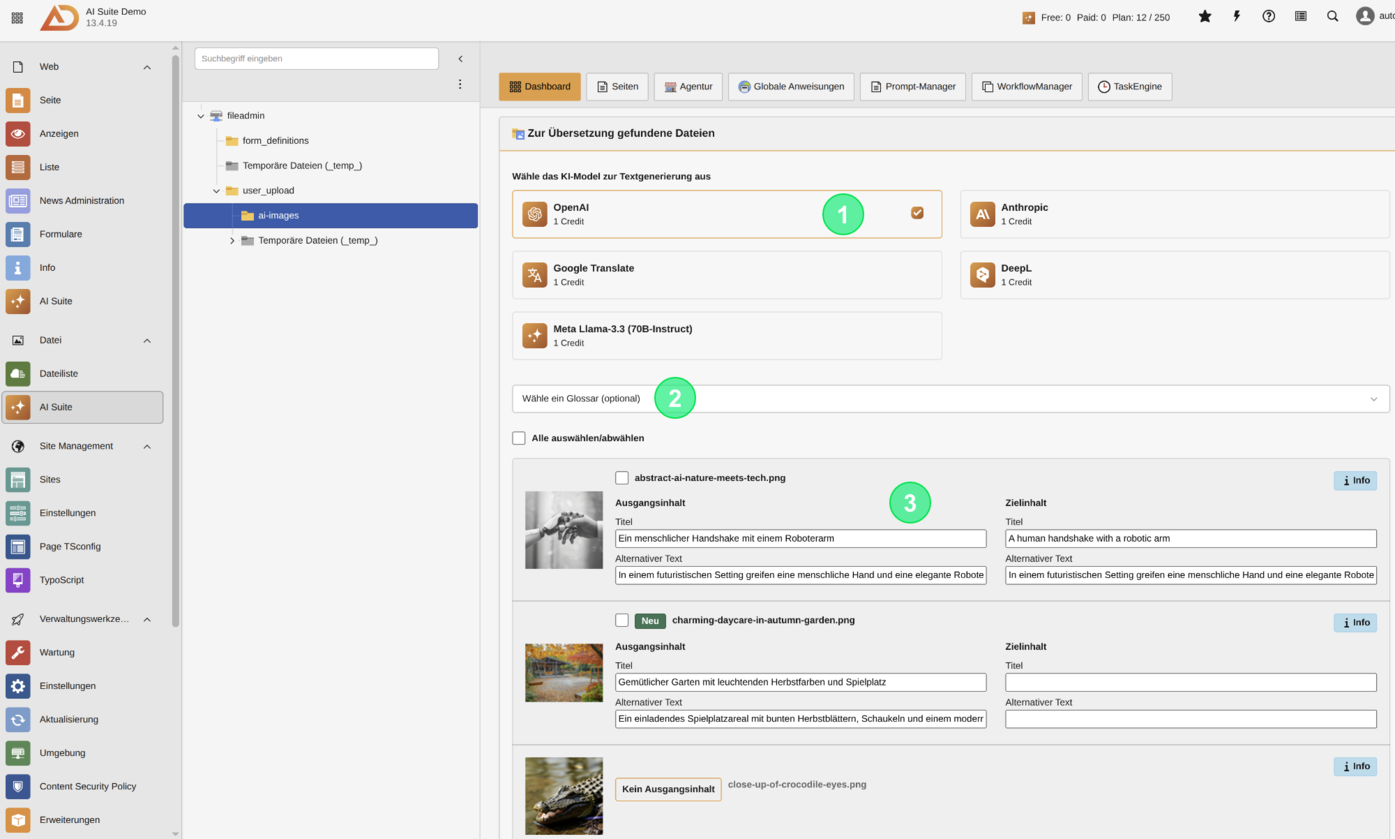
4. Validation of the generated metadata translations
When you generate the metadata translations with AI, they are subsequently generated step by step in the background and added to the TaskEngine.