Generation of page structures
With the AI Suite, you have the ability to generate entire page trees or even individual subsections within existing page trees. After generation by the AI, you can then make appropriate adjustments yourself, adding new pages, moving and/or renaming existing ones, or removing created pages.
The following section explains the procedure step by step.
-
Show larger version
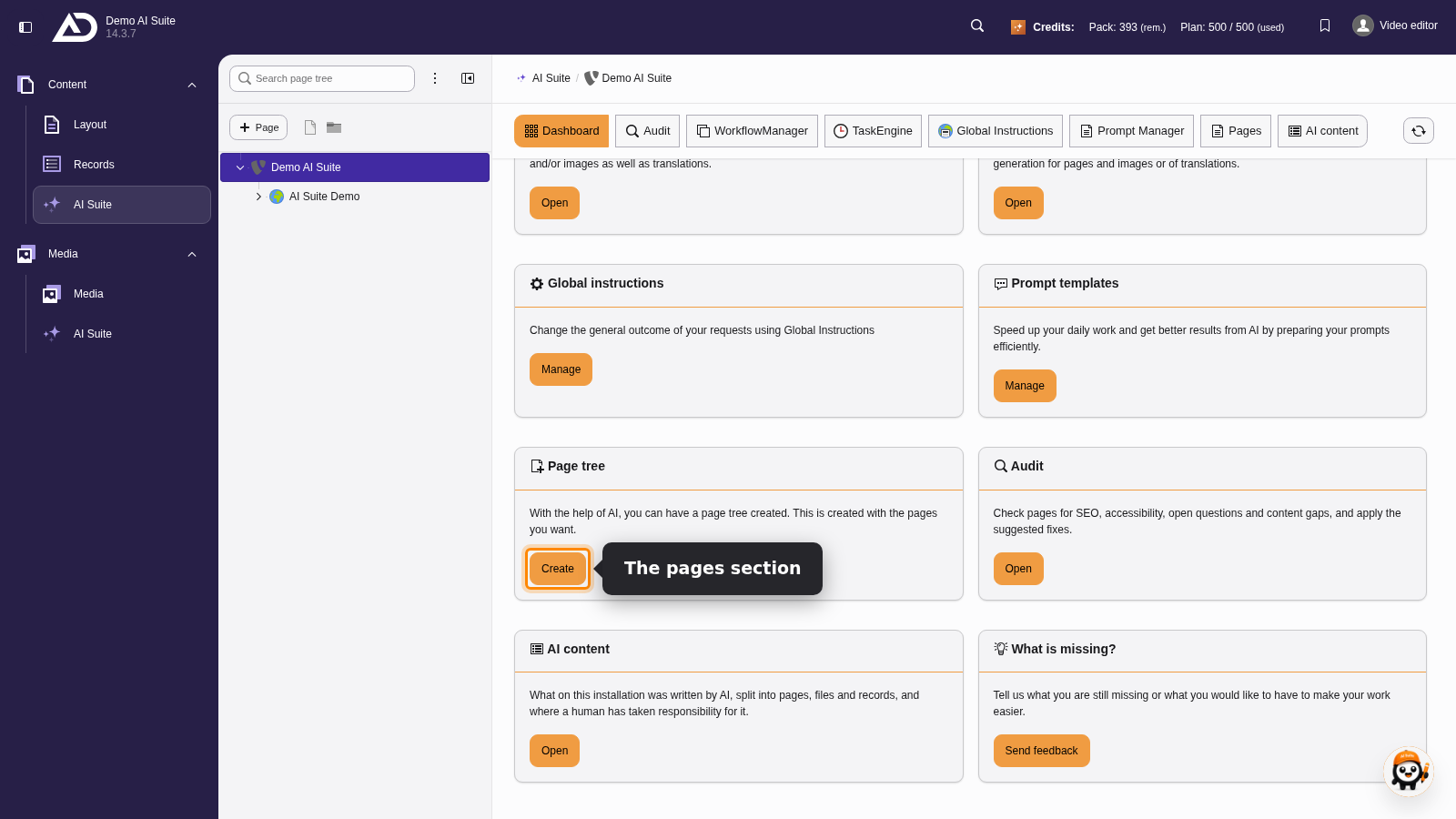
On the dashboard of the AI Suite module, “Create” on the “Page tree” card starts the generator.
2. Structure of the initial input mask
- Select the desired model for creating the page tree.
- If needed, select a prompt template. It is inserted into the input field directly.
- Write your prompt or adjust the template.
- Select the page under which the page tree should be inserted. As an admin, you can instead activate the option “New root page” to create the page tree as a new root page.
- With “New root page”, the selection “Select (target) language:” appears in addition. There you define the language in which the page structure is generated.
- Generate the page structure.
-
Show larger version
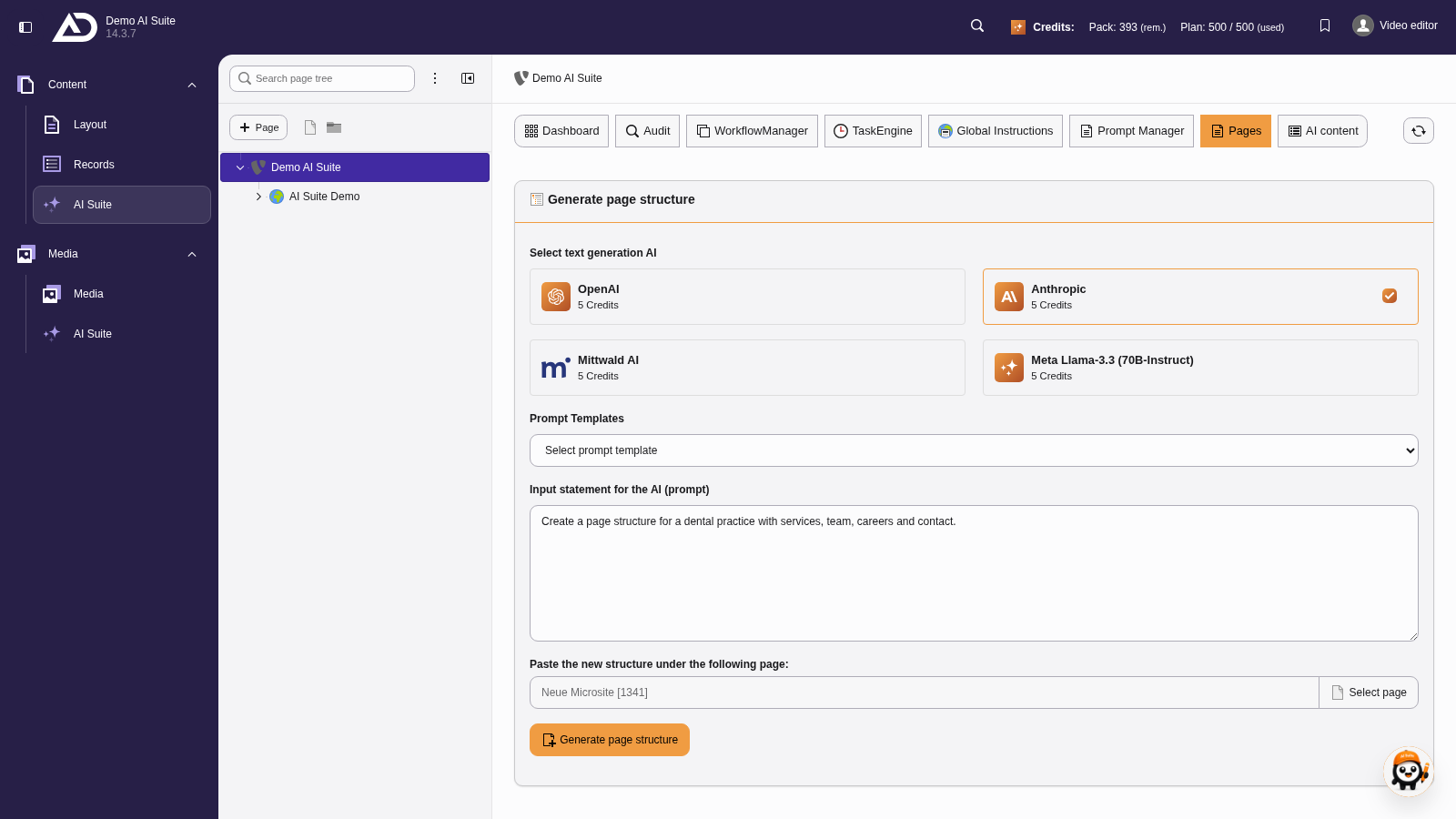
The new pages should go below the page “Neue Microsite”. With “Select page” we search for the page and take it over.
 Use of the default language in generation
The AI Suite always creates page structures in the configured default language, regardless of the language you write the prompt in. The exception is the option “New root page”: there you select the language yourself under “Select (target) language:”. If your backend language differs, backend labels and the generated structure appear in different languages.
Once the page structure has been created, you can review and adjust it. The following image shows only an excerpt.
1. Hide the editing buttons for a better overview
2. Move individual pages or entire areas
3. Edit page titles
4. Delete pages or entire areas
5. Add new pages
6. Update the parent page
7. Save the page structure
-
Show larger version
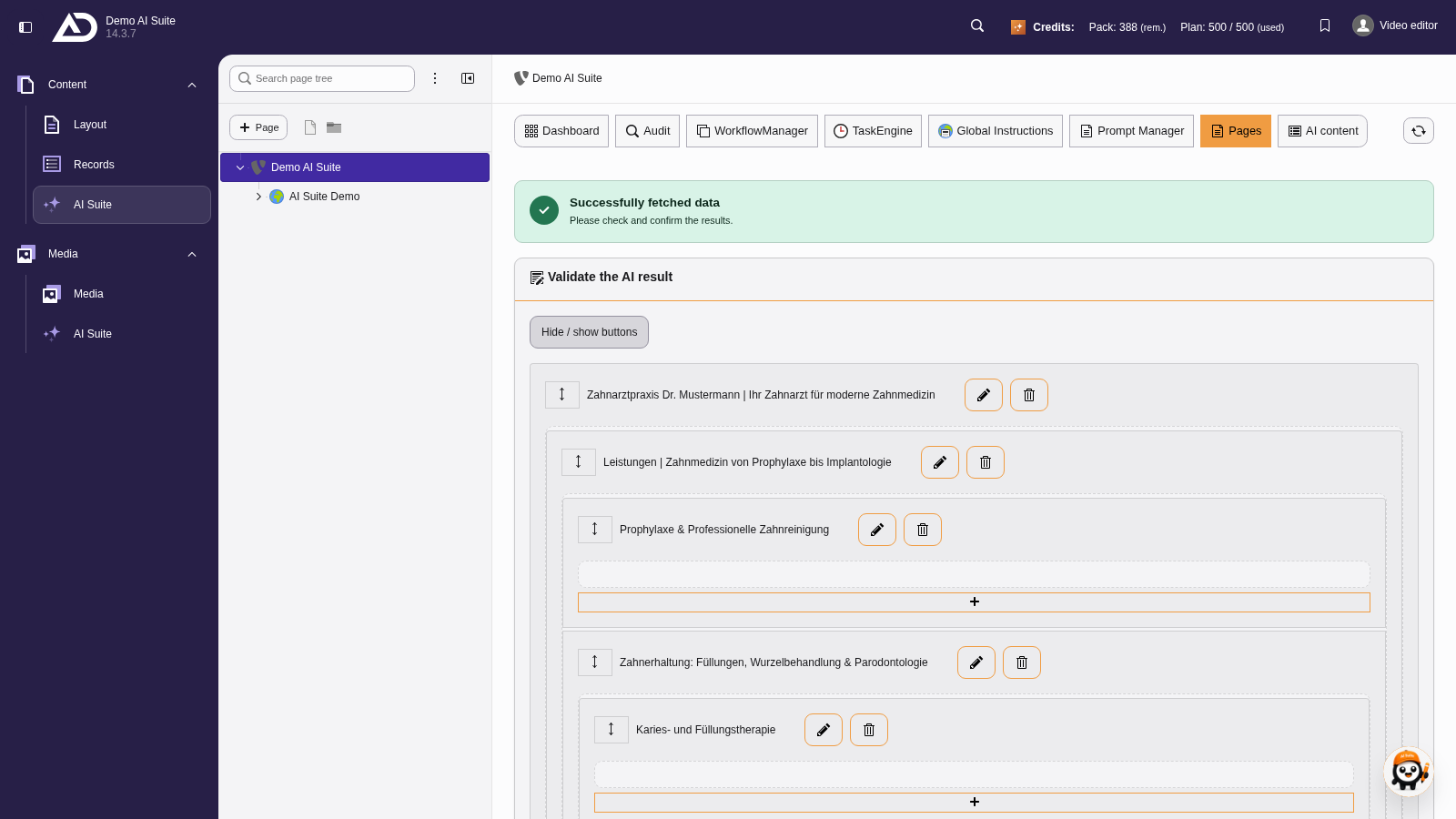
We review the suggestion at our own pace. “Hide / show buttons” gives a better overview.
-
Show larger version
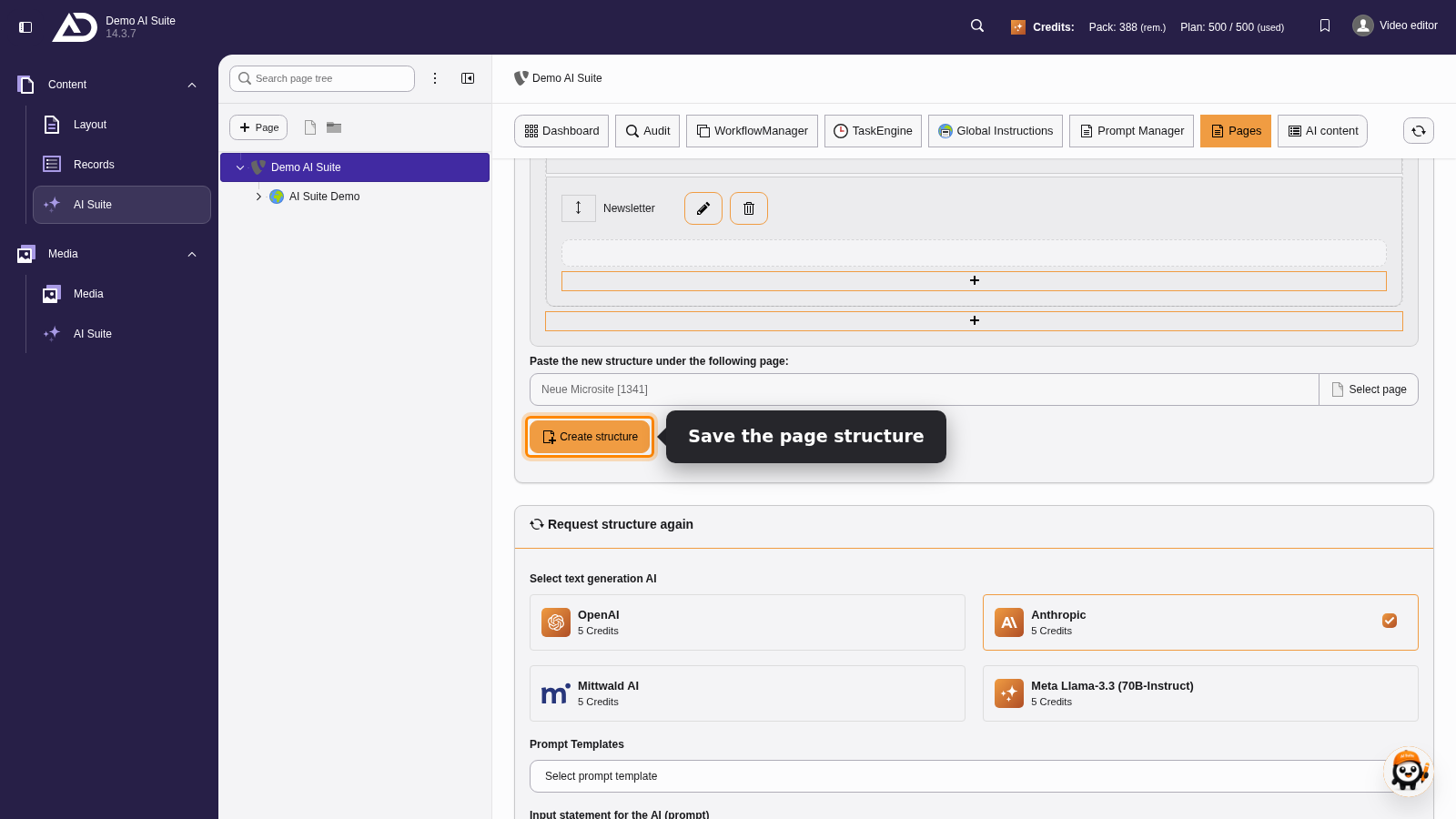
Below the suggestion, we see once more where the pages will go. “Create structure” creates them.
-
Show larger version
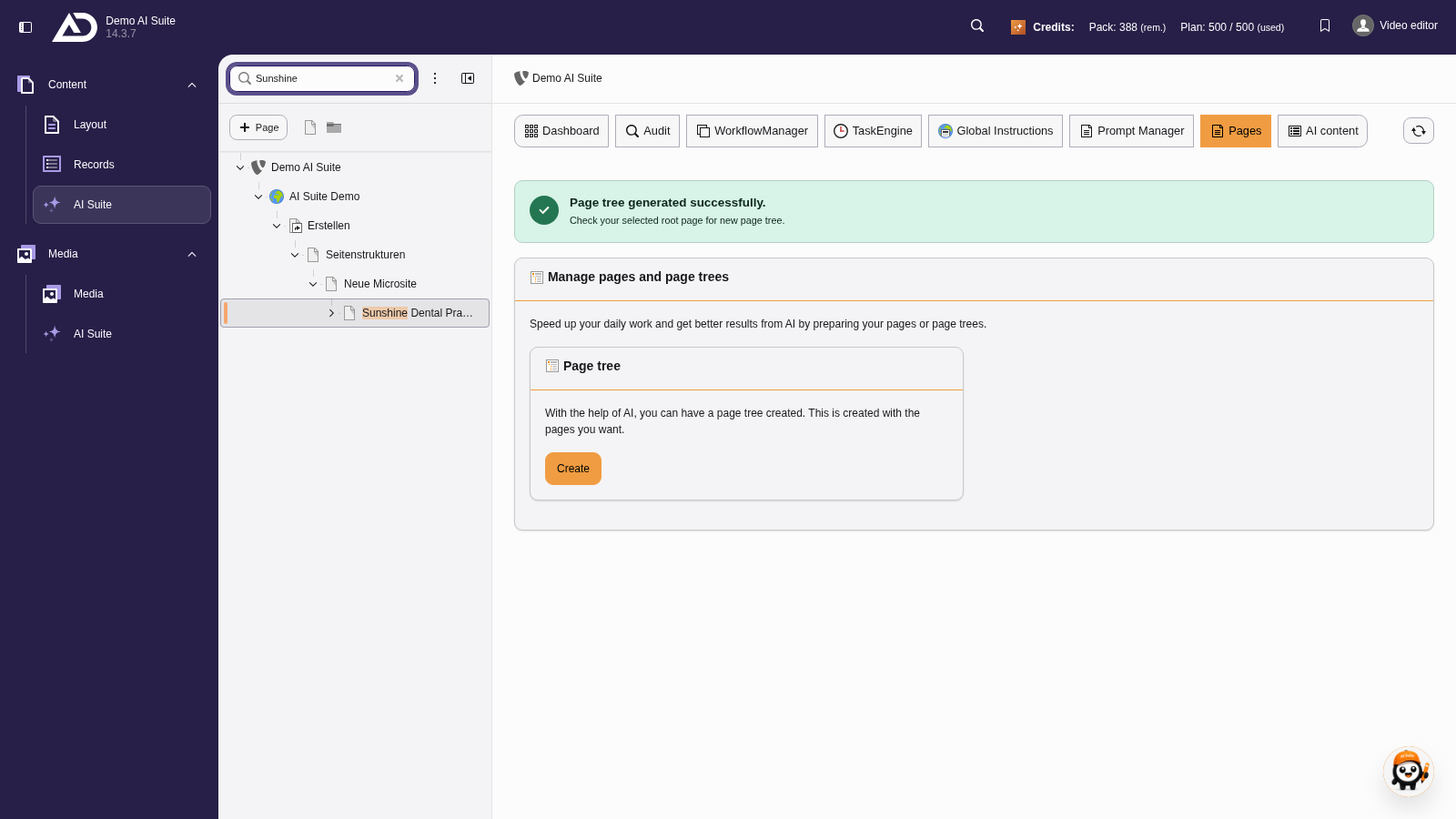
Afterwards the new pages are right there in the page tree.
5. Regenerate structure
If the result deviates too much from your expectations, you can also have a completely new page structure created. The initial input mask is available below the generated page structure and the previously made entries or selected options are already preselected. You can of course still make adjustments before generating again.
1. Change the model
2. Adjust the prompt
3. Update the parent page
4. Generate new page structure
-
Show larger version
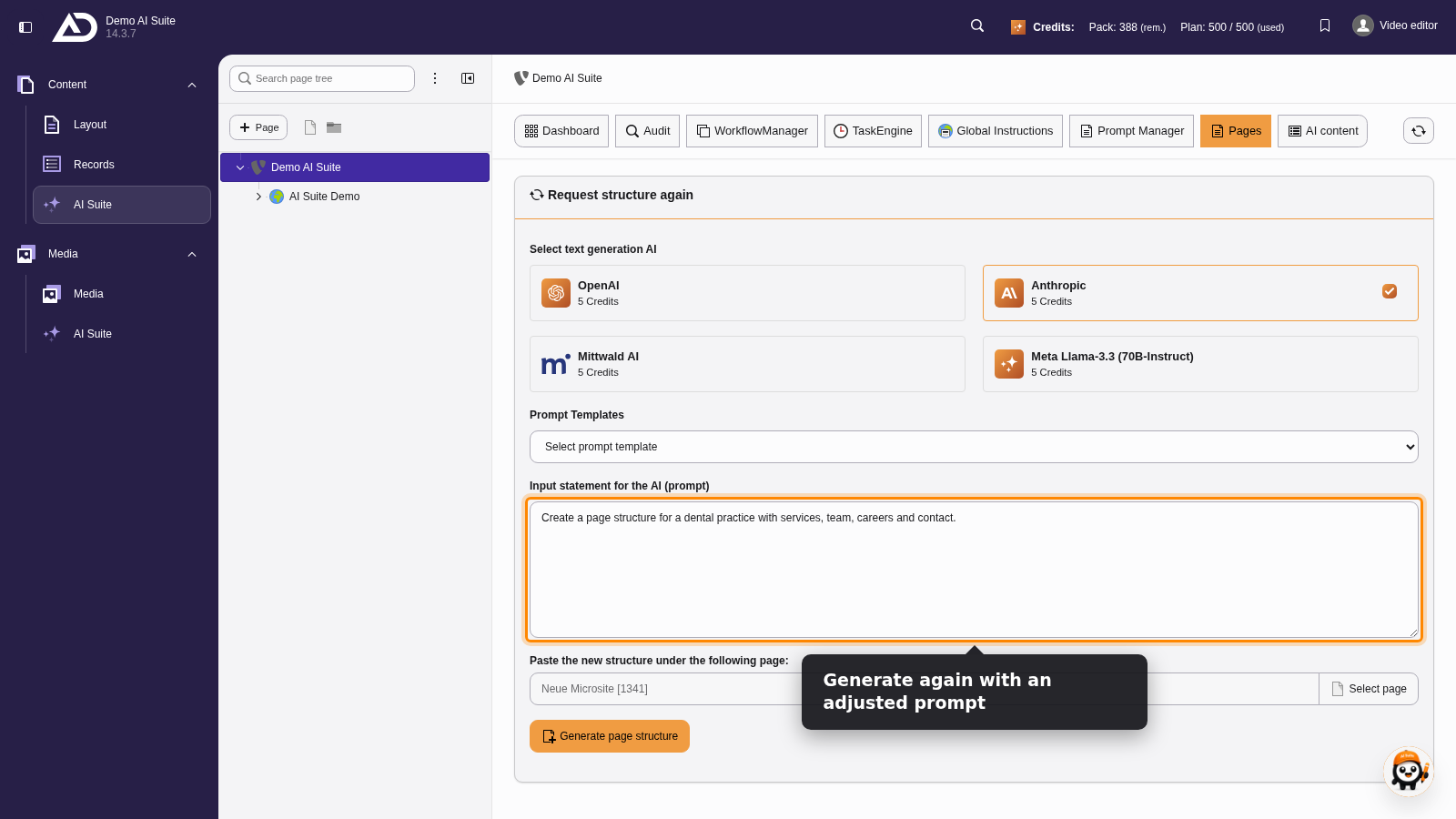
If the suggestion does not fit, we change the prompt under “Request structure again” and generate again.