Global Instructions
Since versions 13.8.0/12.14.0, you have the option to create Global Instructions. These will then be automatically added before the respective prompts in each request. Global Instructions can be created for different scopes of validity and pages. Additionally, there is the possibility to combine multiple Global Instructions within a page tree or overwrite previous ones.
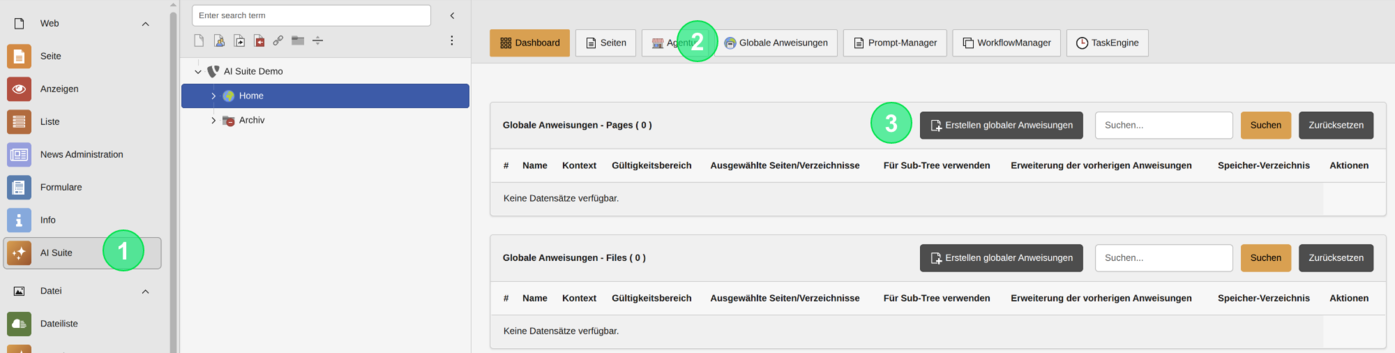
2. Structure of the initial input mask
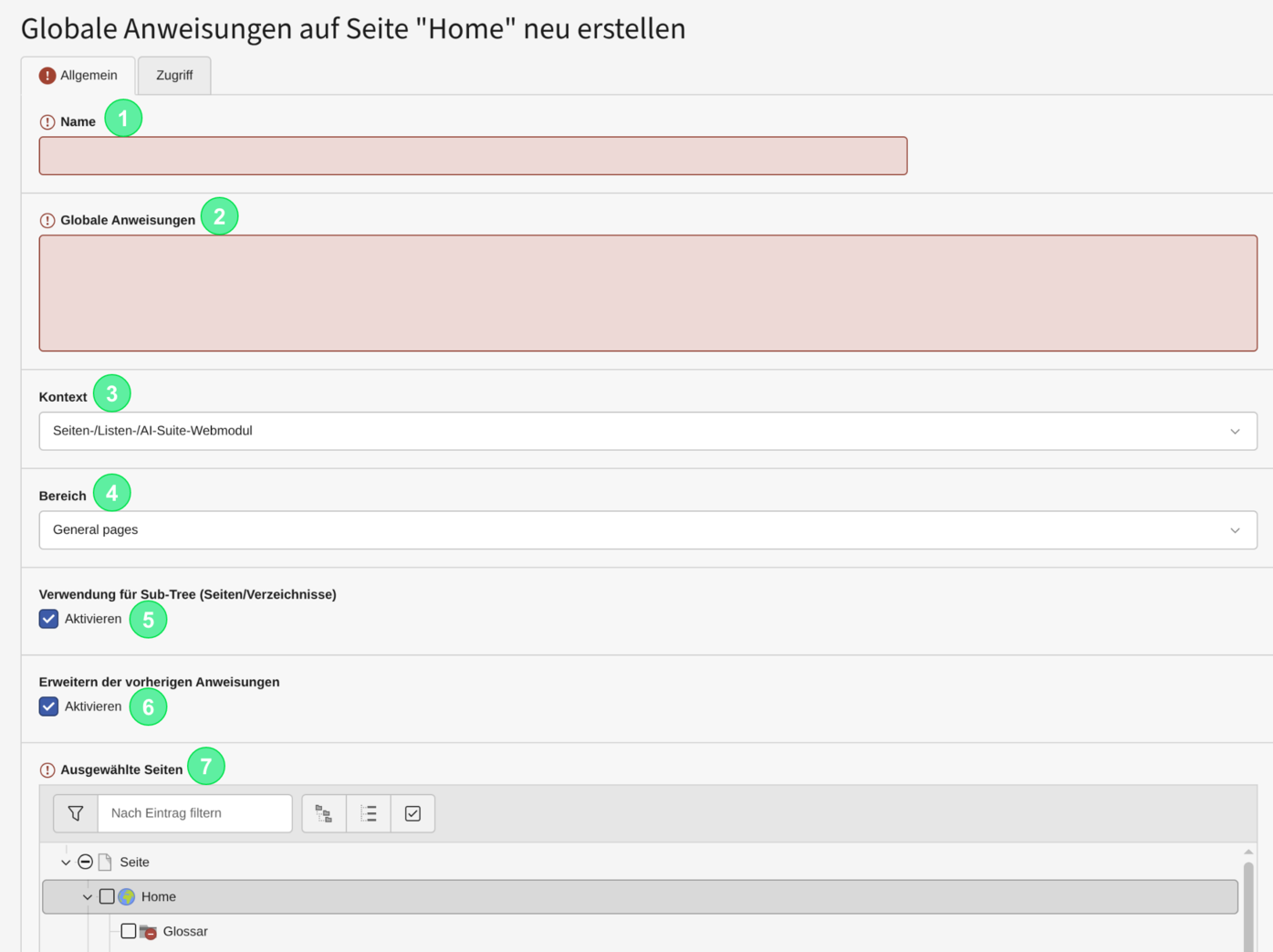
- Set a meaningful name or edit the existing name
- Create your Global Instructions or modify them
- Select the context (either “Page-/List-/AI-Suite-Webmodule” or “File lists-/AI Suite-File lists module”) for the Global Instruction. Depending on the context, different areas are available
- Select the area for which the context should apply.
- for the area “Page-/List-/AI-Suite-Webmodule” there are: “General available”, “PageTree”, “ImageWizard pages”, “News record”, “ContentElement”, “RTE Content Editing”, “Metadata pages”
- for the area “File lists-/AI Suite-File lists module” there are: “General available files”, “ImageWizard files” and “Metadata files files”
- With the option “Use for Sub-Tree (pages/directories)” you can set that the Global Instructions should also be used for all child pages
- With the option “Extend previous instructions” you can set that already existing Global Instructions from previous or parent pages should be extended
- With “Selected pages” or “Selected directories” you can specify the pages or folders for which the Global Instruction should be considered
- Save the record
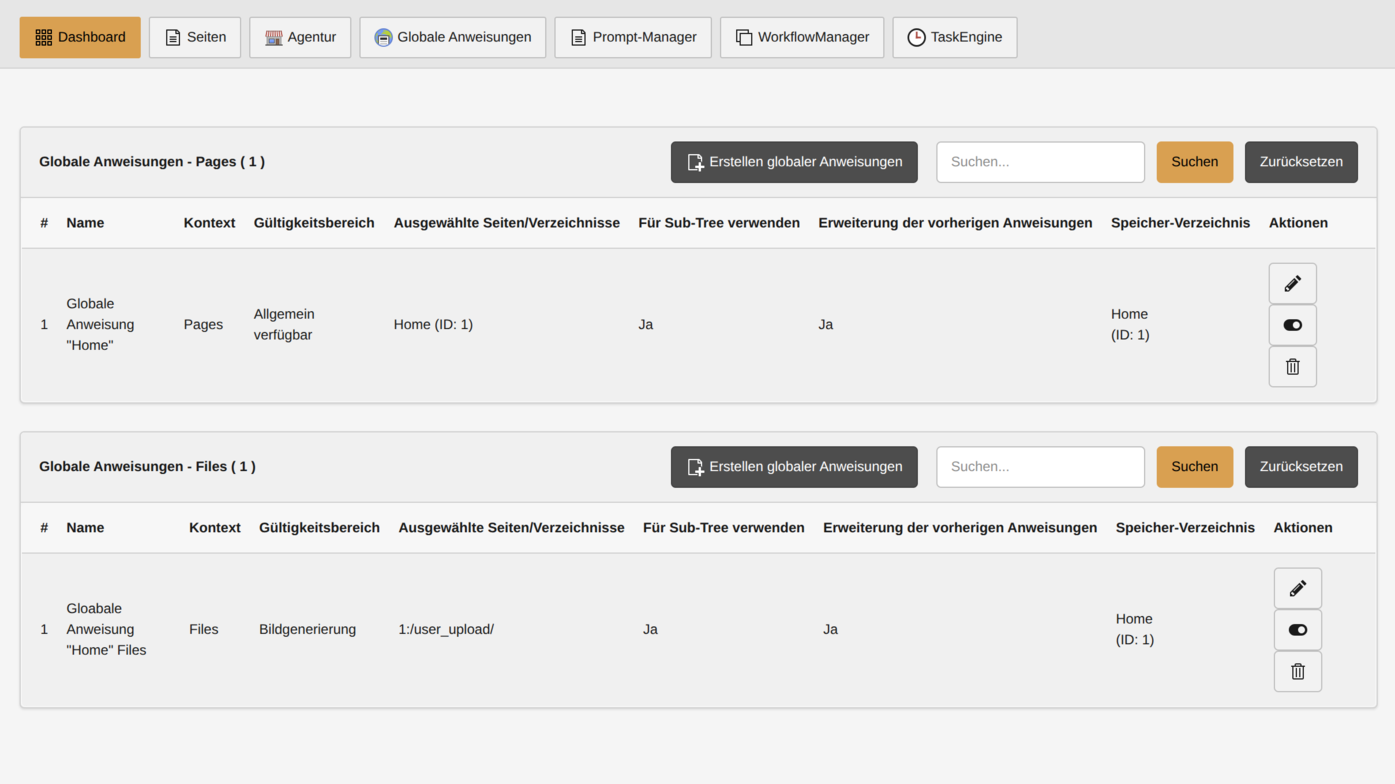
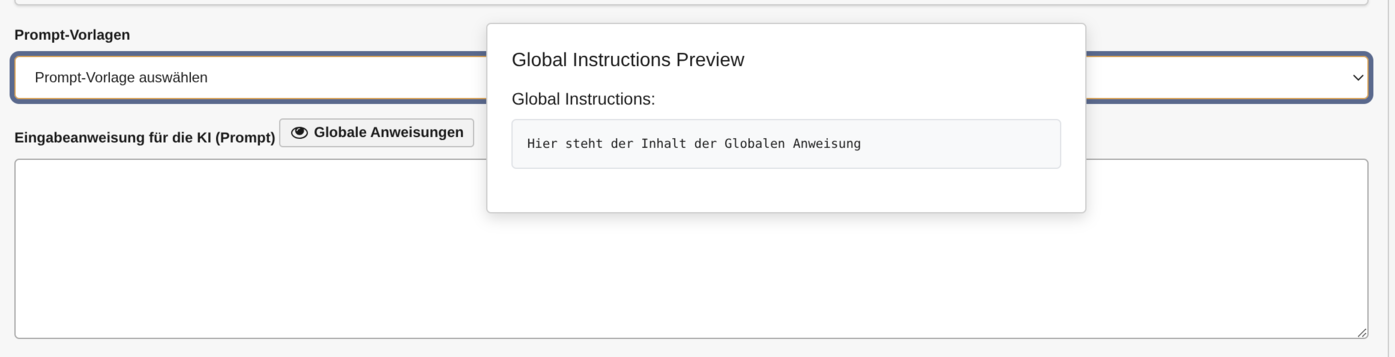
4. Availability and display of the Global Instructions
If Global Instructions are available for the selected page or folder and the validity scope, a corresponding button appears above the input field for the respective prompt. As soon as this button is “hovered” over, the content of the Global Instruction that is stored and used can be seen.