Generation of content elements
With the AI Suite, you can have the AI fill all content elements you have access to. It detects all text and image fields, including those of child elements.
After generation, you can revise the created content. A special plugin is available for RTE fields, and individual images can be recreated.
The following section explains the procedure step by step.
1. Where can I find the function?
To get to the input mask, follow these steps:
- Switch to the Page module and open the “New content element” wizard
- Switch to the “AI Suite Content” tab (here you will find all content elements you can have created with AI support)
- Select the desired content element (here “Text & Images”)
-
Show larger version
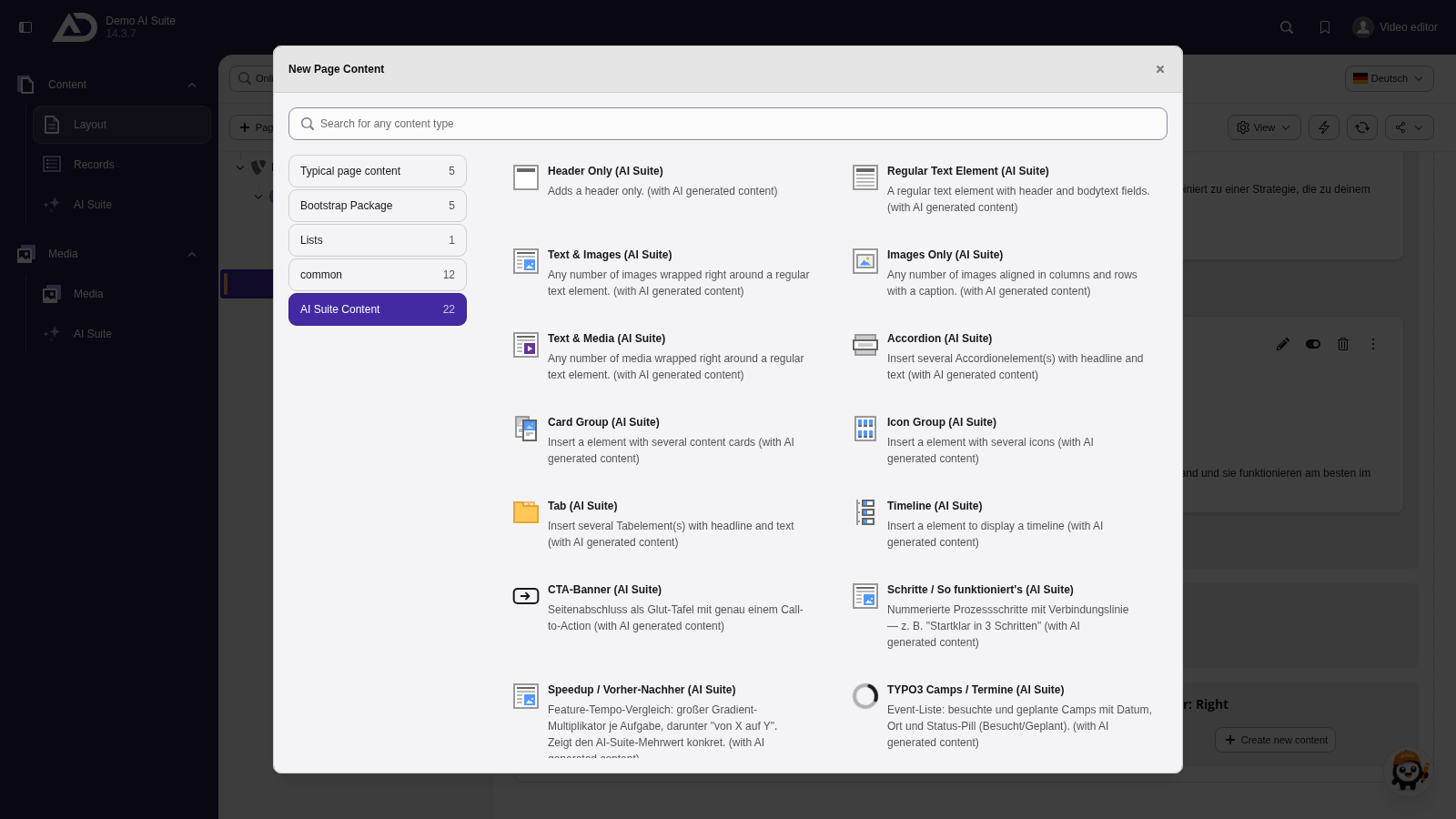
Below the section heading, we add new content. The “AI Suite Content” tab lists every element the AI can fill.
2. Structure of the initial input mask
- Select the desired text model for creating the text content of the content element
- Select the desired image model for creating the images of the content element (if available)
- if applicable, set additional configuration parameters (currently only for Midjourney)
- Select the individual fields of the content element that should be generated
- If needed, select a prompt template. It is inserted into the input field directly.
- Write your prompt or adjust the template.
- Generate the content element
-
Show larger version
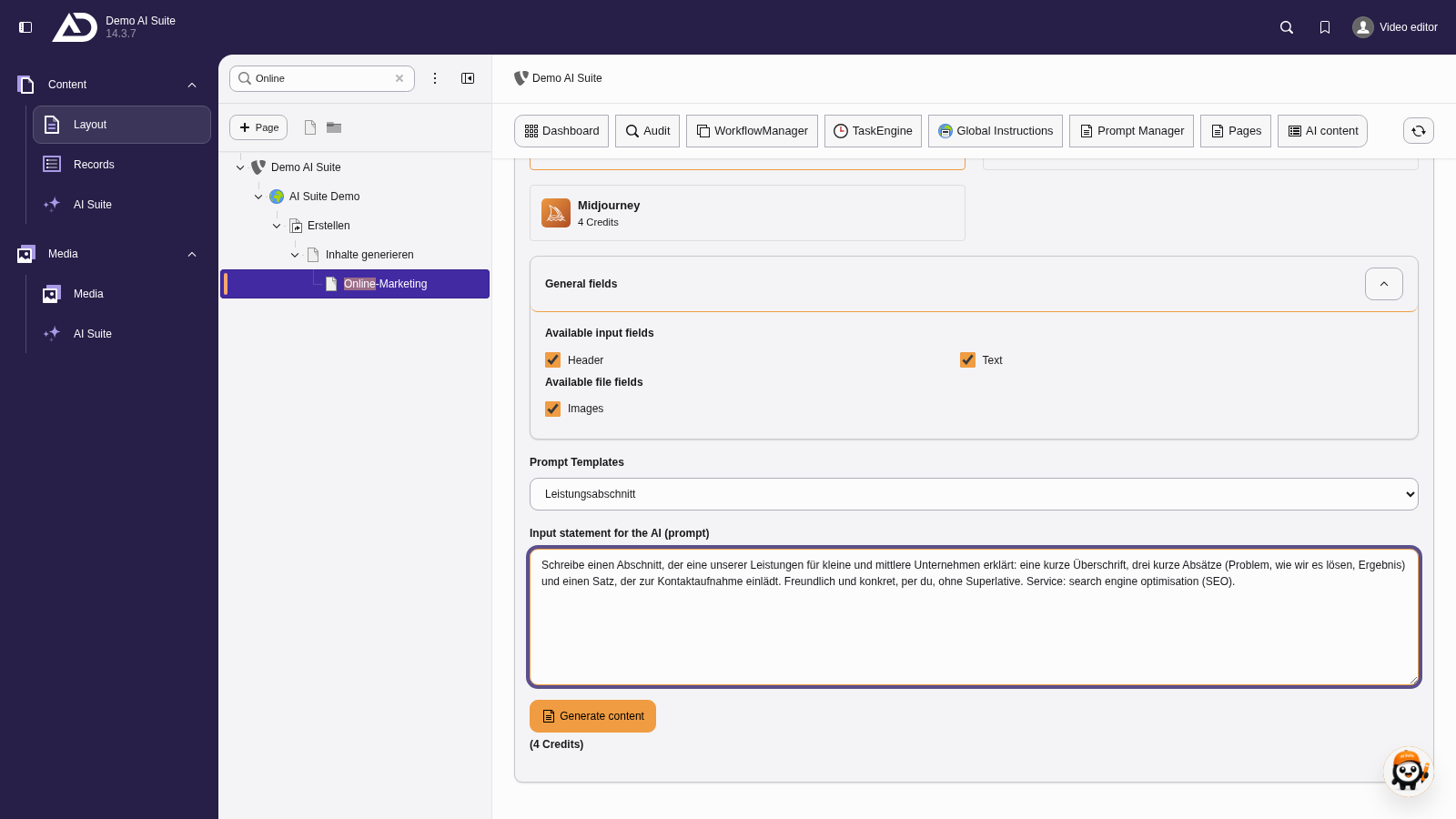
We choose the prompt template “Leistungsabschnitt” and only add to the prompt which service it is about.
 Automatic use of the pre-configured language (of the page)
The AI Suite always generates content in the page language, regardless of the language you write the prompt in.
If your backend language differs, backend labels and generated content appear in different languages.
After the fields of the content element have been created, you can now validate the results and make appropriate adjustments.
- In RTE fields, you work in the editor as usual
- within the RTE field, an additional plugin for modifications is available
- For images, the behavior depends on the selected model
- Midjourney
- Preselection of images
- Selection and generation of an image using the buttons
- processed image with title suggestions
- GPT Image and Flux
- direct image suggestion with title suggestions
- Midjourney
- All images can be regenerated separately
- Create/save the content element or regenerate it completely (start at step 2 with pre-filled values)
-
Show larger version
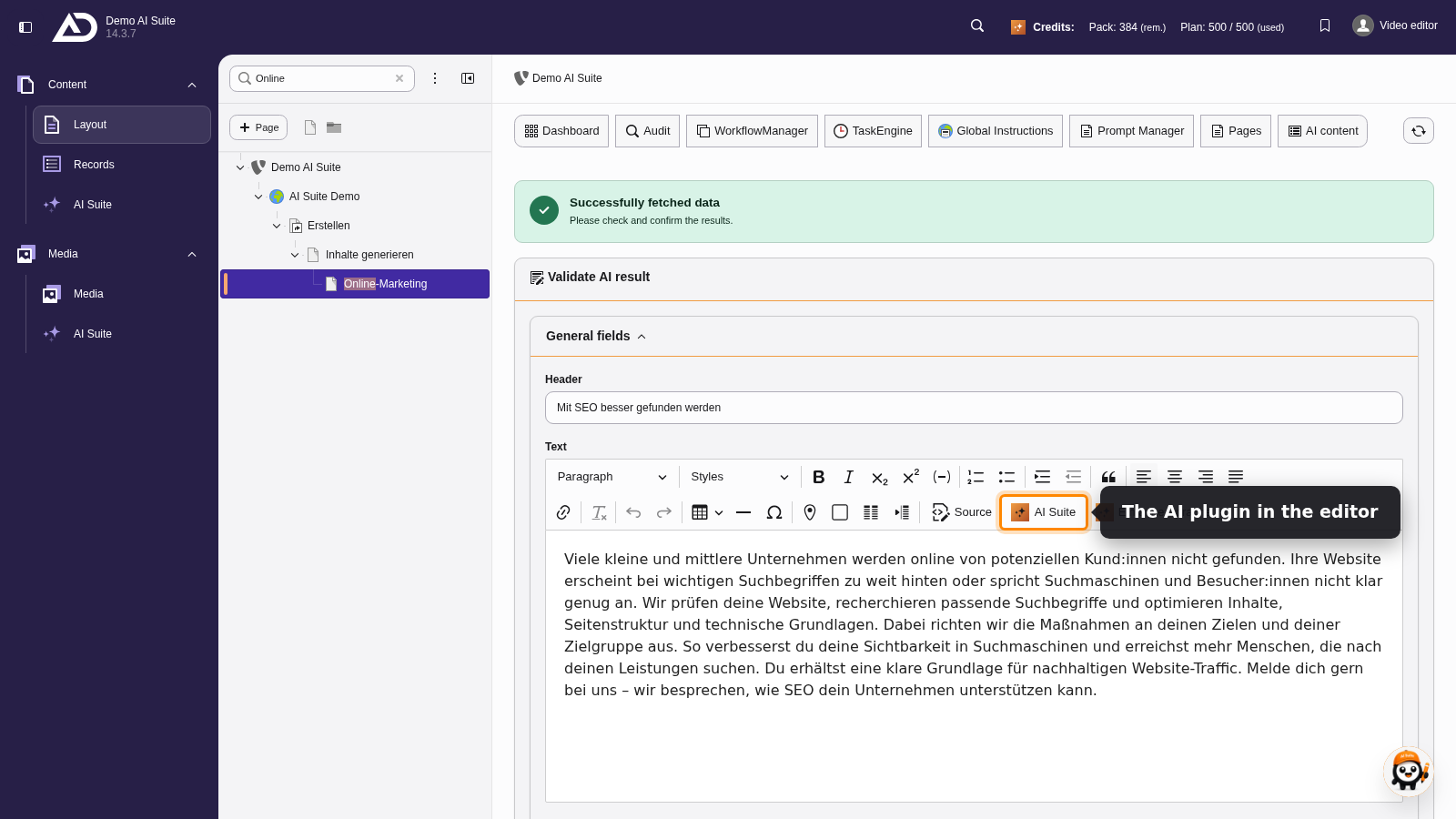
We review and edit the text right in the editor. The “AI Suite” button helps with rewriting here, too.
-
Show larger version
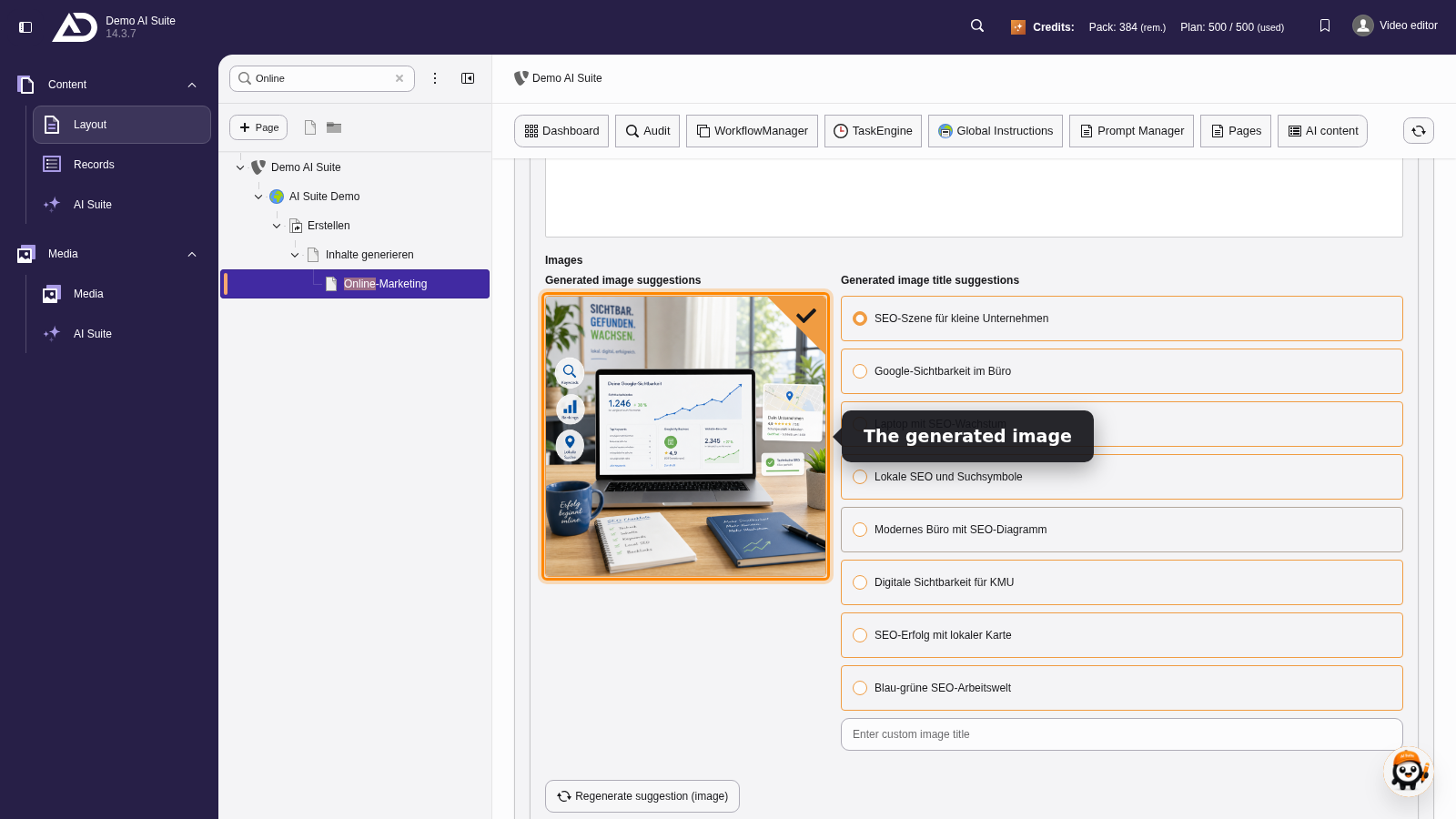
For the image, the AI suggests several titles. We pick one. If the image does not fit, it can be generated again on its own.
-
Show larger version
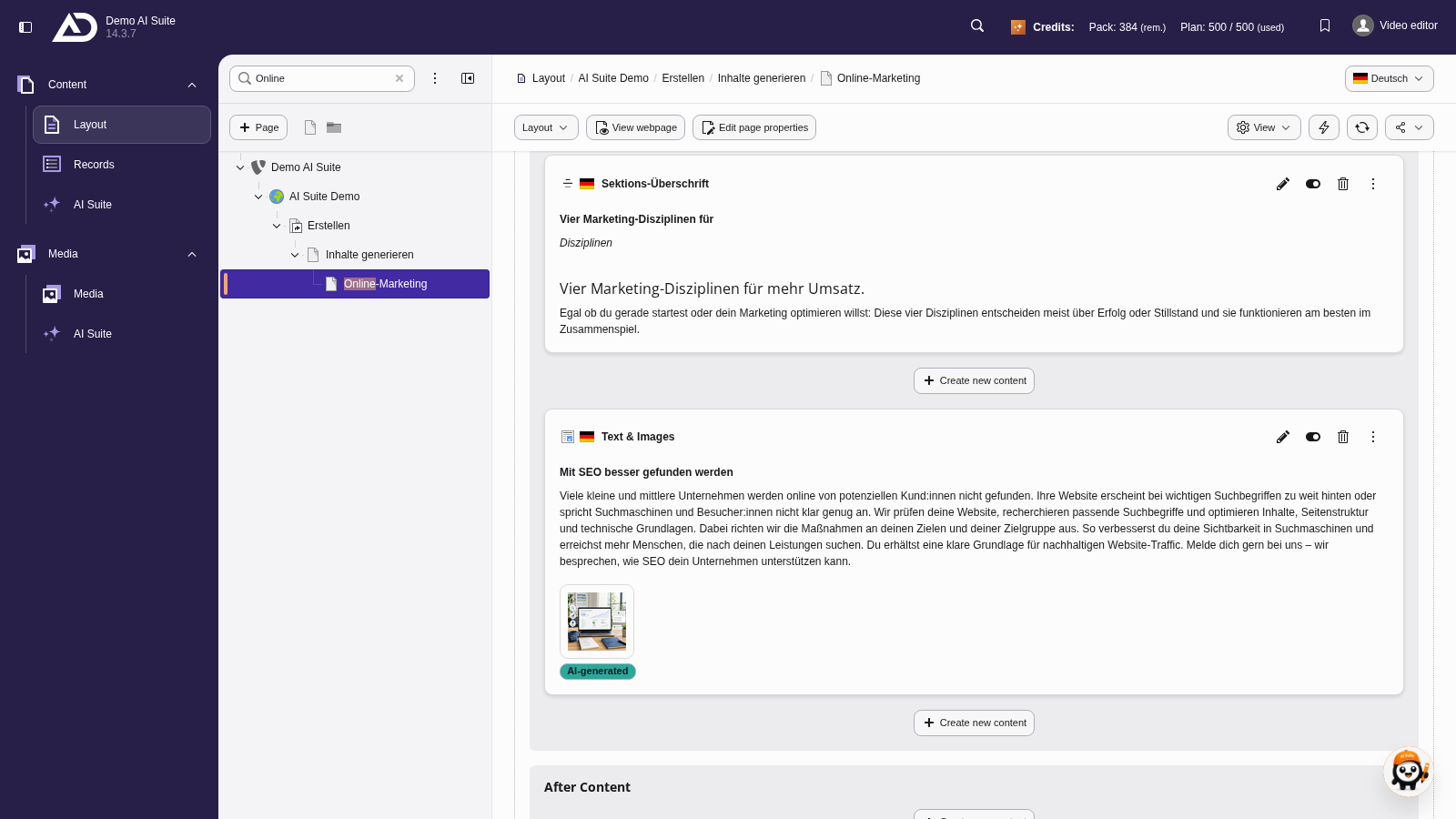
With “Add content to page”, the element goes right below the section heading.