1. Where can I find the function?
To access the image generation wizard, follow these steps:
- Select your desired content element or record (here “Text & Images”)
- Go to the place where you want to add your image (here the “Images” field in the “Images” tab).
- Click “Generate Image with AI” to open the wizard.
-
Show larger version
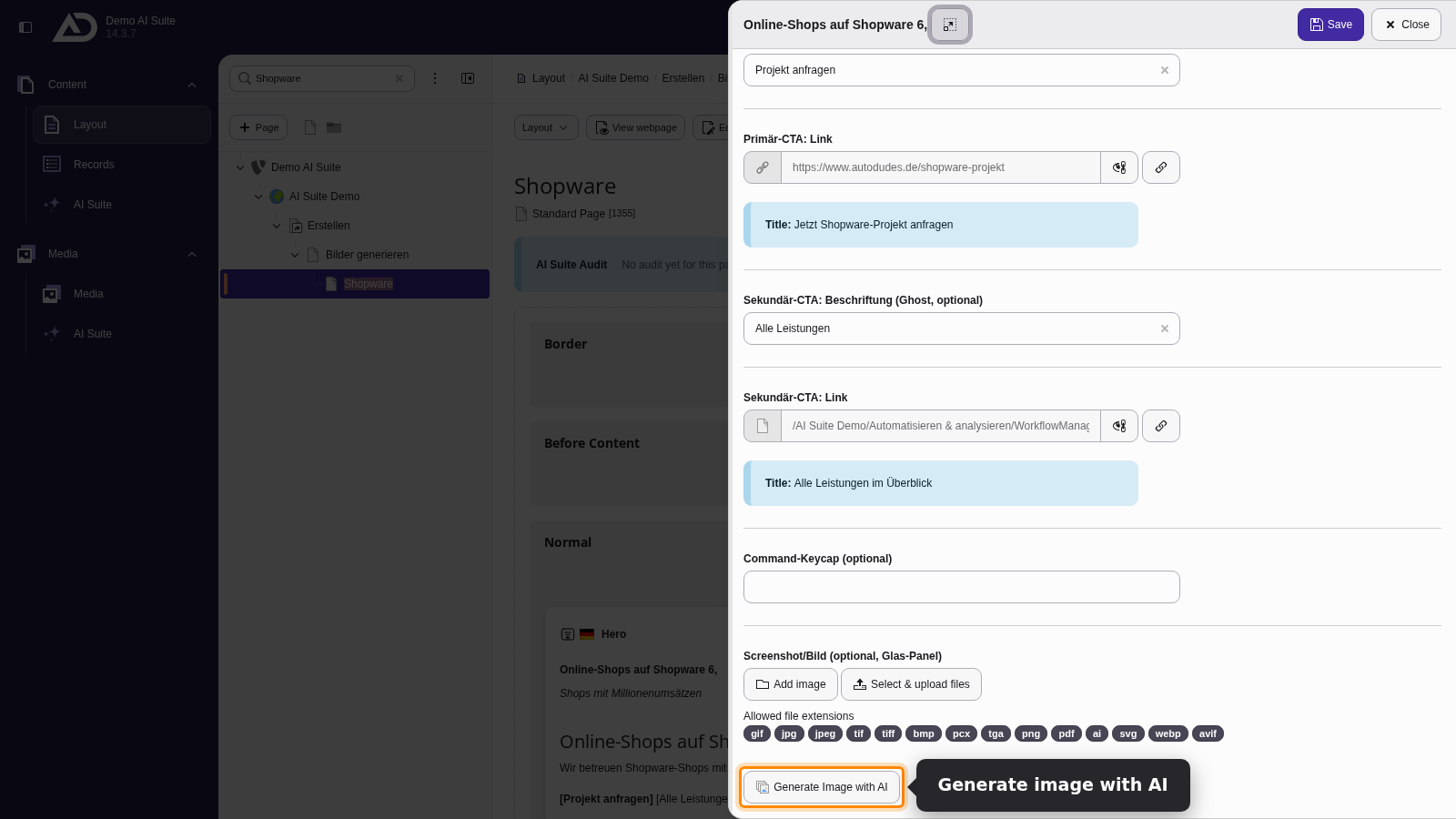
Next to every image field, the “Generate Image with AI” button is located.
2. Structure of the initial input mask
- Select the desired image model for creating your image.
- If needed, select a prompt template. It is inserted into the input field directly.
- Write your prompt or adjust the template.
- Set additional configuration parameters if necessary (currently only with Midjourney).
- Generate the image.
-
Show larger version
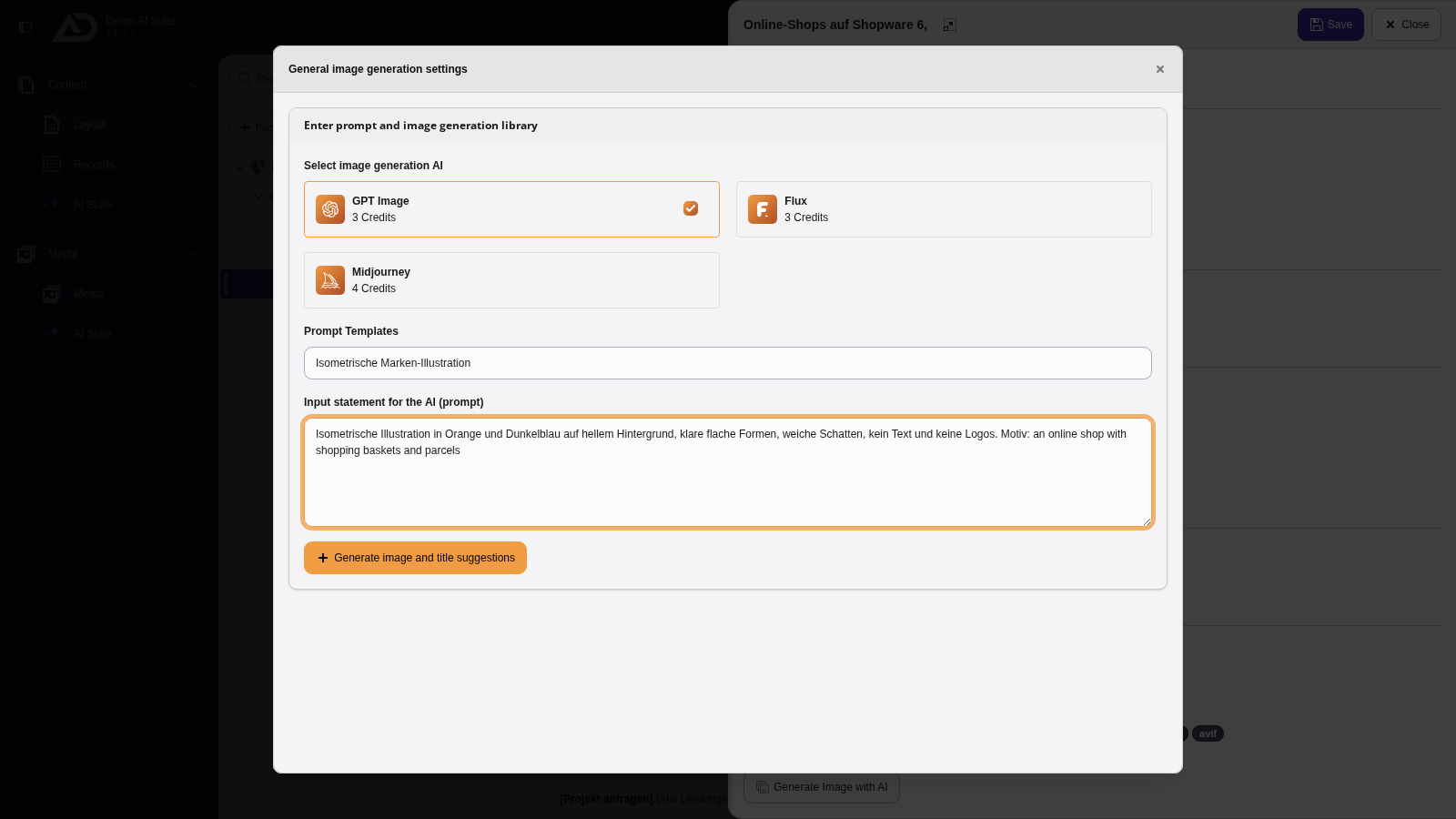
We choose an image model and the prompt template “Isometrische Marken-Illustration” and only add the prompt.
 Automatic use of the pre-configured language (of the page)
The AI Suite always generates title suggestions in the page language, regardless of the language you write the prompt in.
If your backend language differs, backend labels and generated content appear in different languages.
The next step depends on the chosen model.
- Midjourney
- Preselection of images
- Selection and generation of an image using the buttons
- Processed image with title suggestions
- Regeneration
- GPT Image and Flux
- Direct image suggestion with title suggestions
- Create/save image or regenerate
3.1 Midjourney Preselection
-
Show larger version
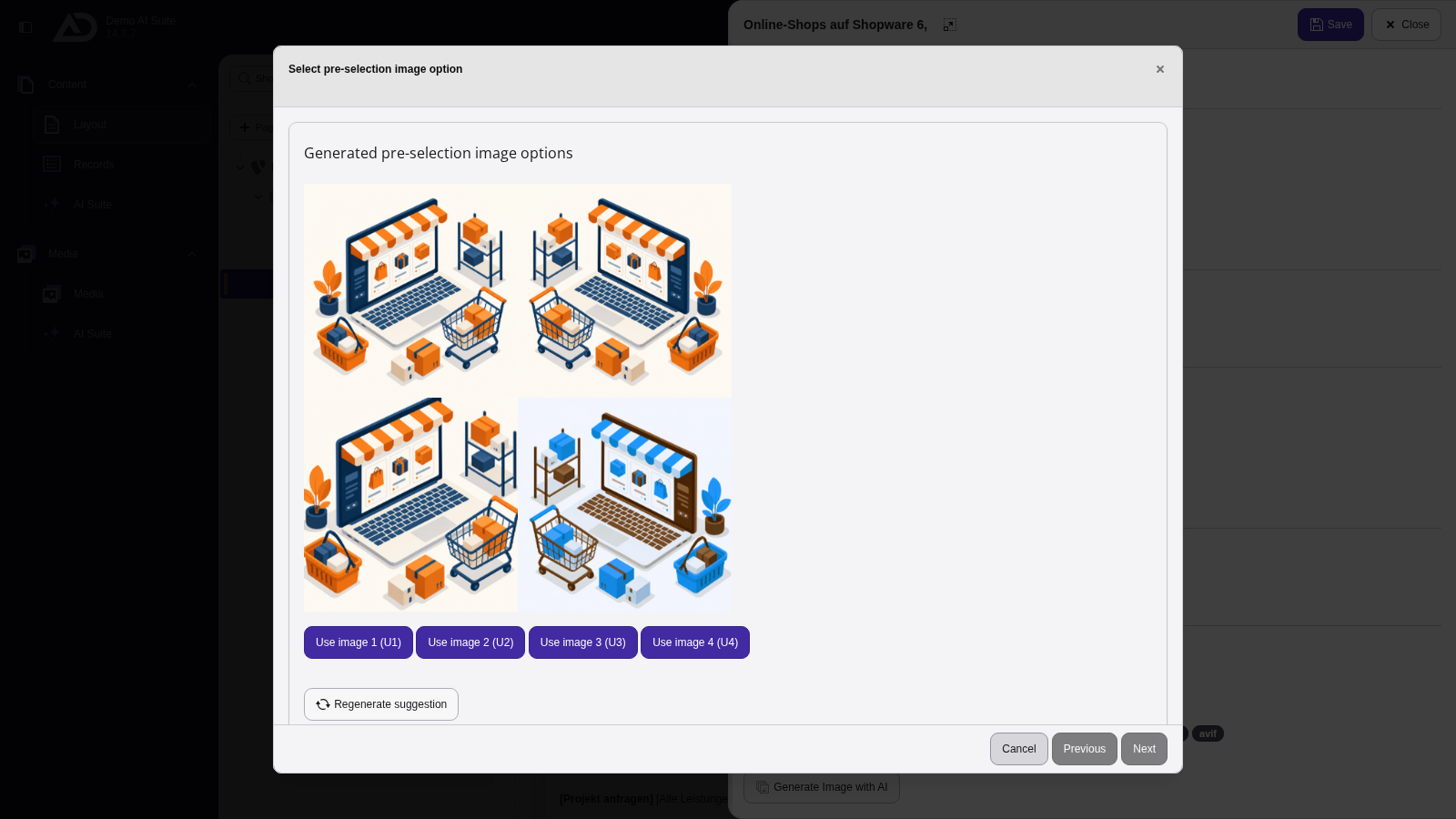
Midjourney delivers four variants. With “Use image 1 (U1)” to “(U4)” we take one of them.
-
Show larger version
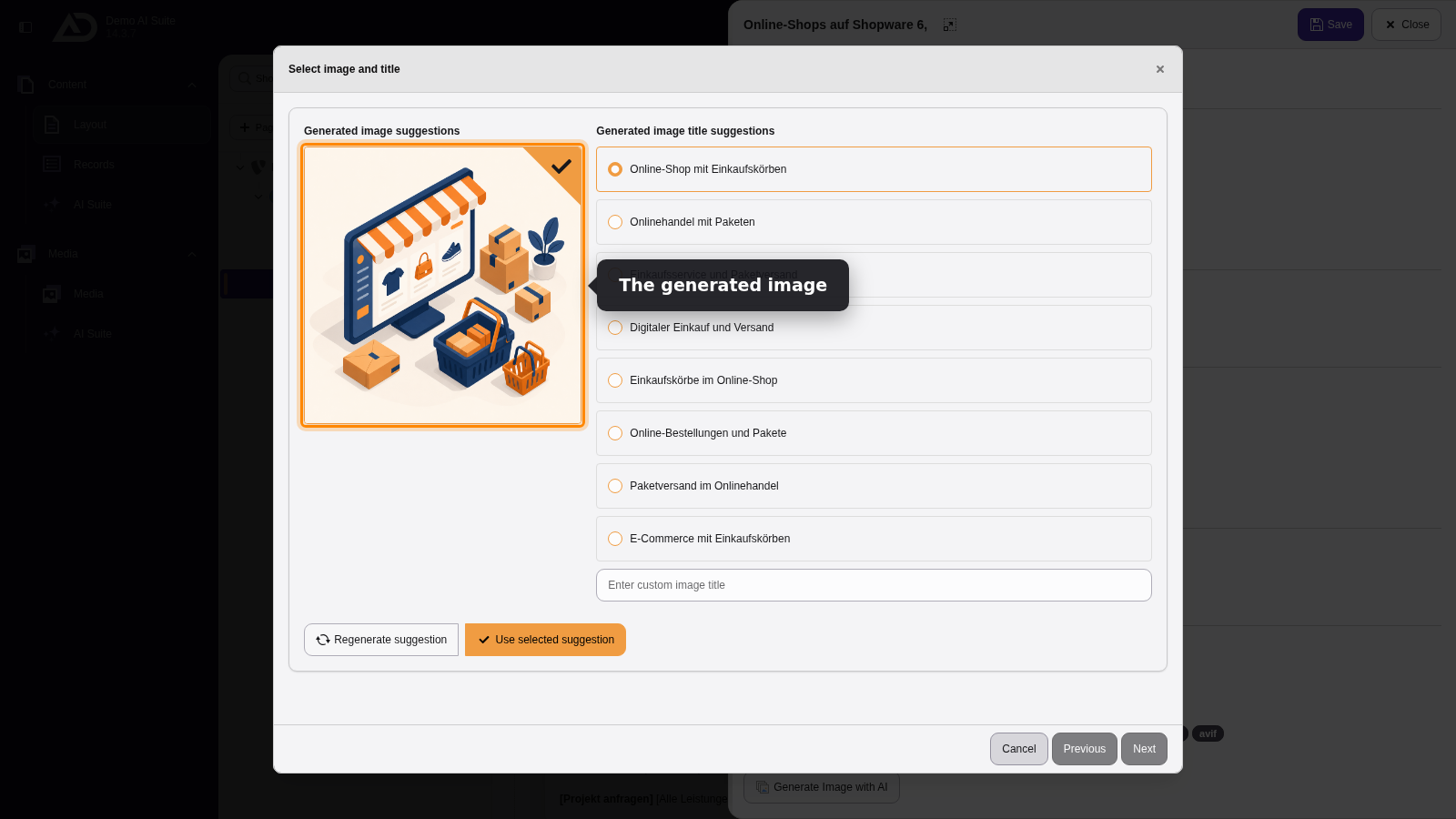
We choose a title. With “Regenerate suggestion” we create a new image if needed. Otherwise we take it with “Use selected suggestion”.
 Storing the image in the file list
All images are stored in the file list by default. The folder “ai-images” is used: for admins, it is located in the default folder of the default storage, for all other users in the first available file mount. If the folder does not exist, it will be created automatically.
The folder can also be specified via the extension configuration (setting “Store image and media files at this folder”).
-
Show larger version
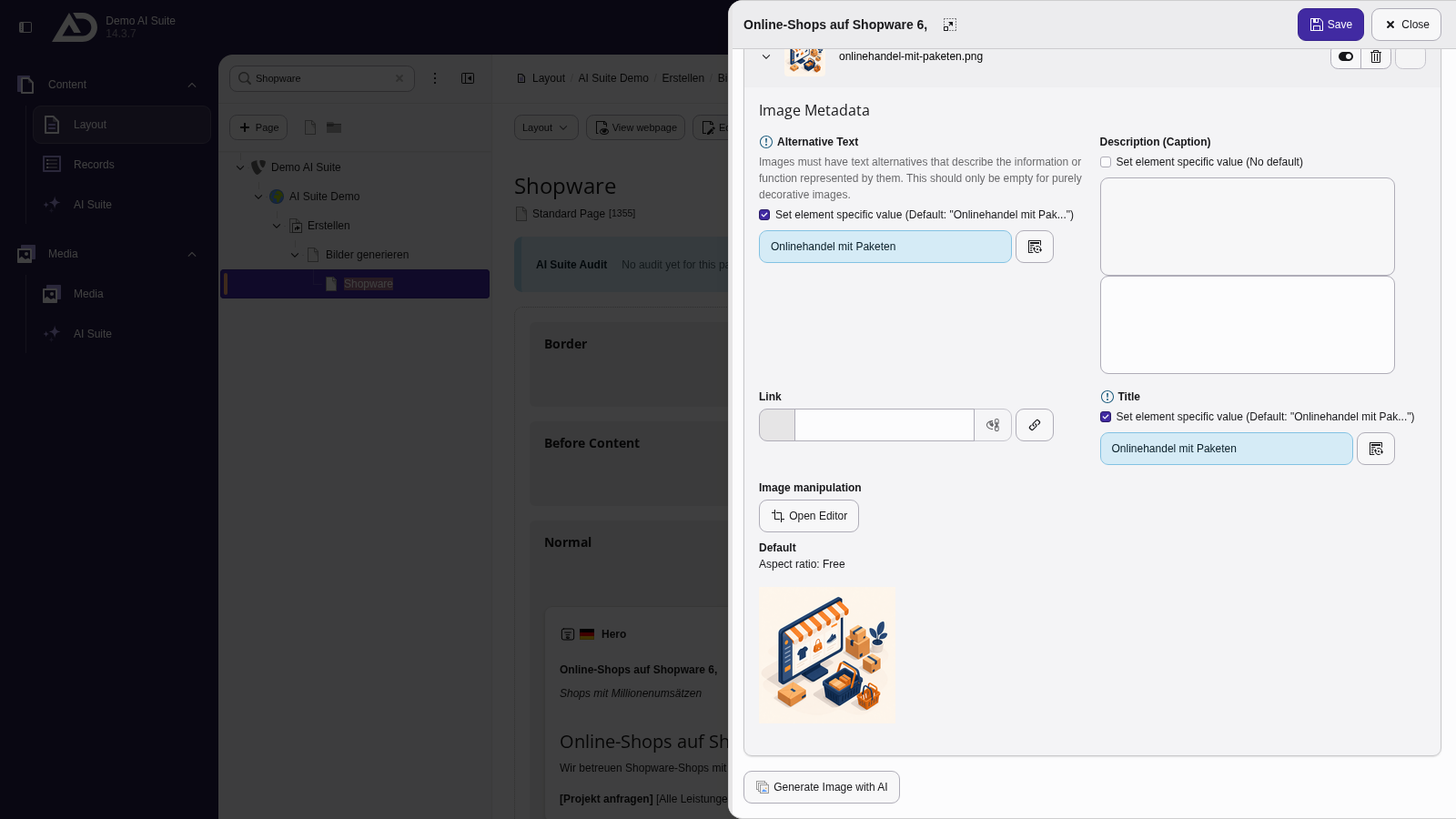
The image is now in the field, with title and alternative text already filled in. Then we save the element.
-
Show larger version
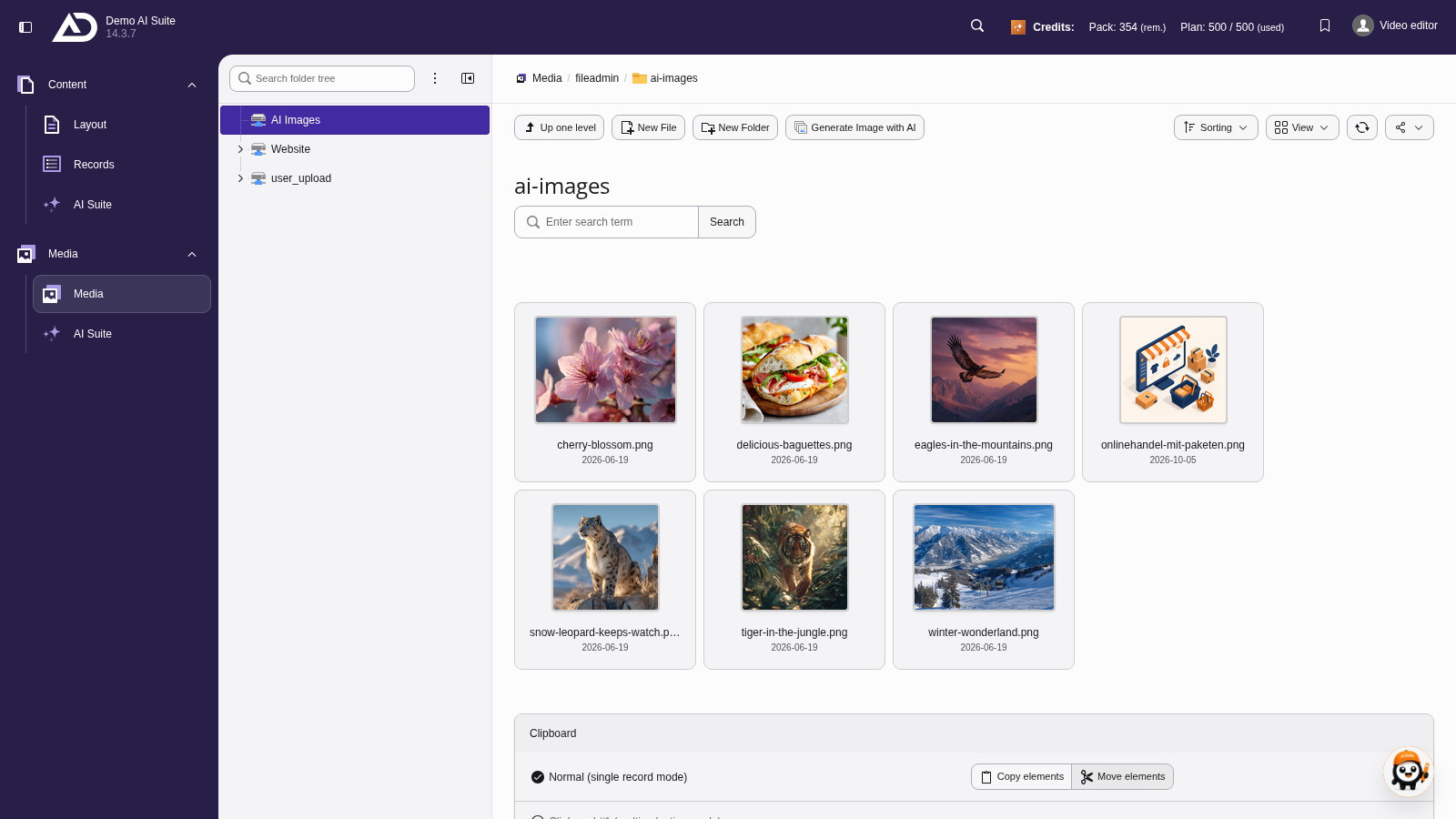
The new image is also in the file list, in the “ai-images” folder.