WorkflowManager
Since versions 13.1.0/12.7.0, you create and edit metadata with the AI Suite via the WorkflowManager.
The following tasks can be processed on a large scale:
- Page metadata (title for search engines, description for search engines, Open Graph title, Open Graph description, X / Twitter title, X / Twitter description, abstract)
- Metadata of files embedded on a page (file references: image alternative text, image title, description)
- Metadata for files in the file list (image alternative text, image title, description)
- Translation of existing file metadata (since versions 13.9.0/12.15.0)
- Translation of entire pages including content and metadata (since versions 13.6.0/12.12.0)
Since versions 14.1.0/13.13.0/12.19.0, the tasks can run in the background and fill in the fields automatically, see CLI commands.
-
Show larger version
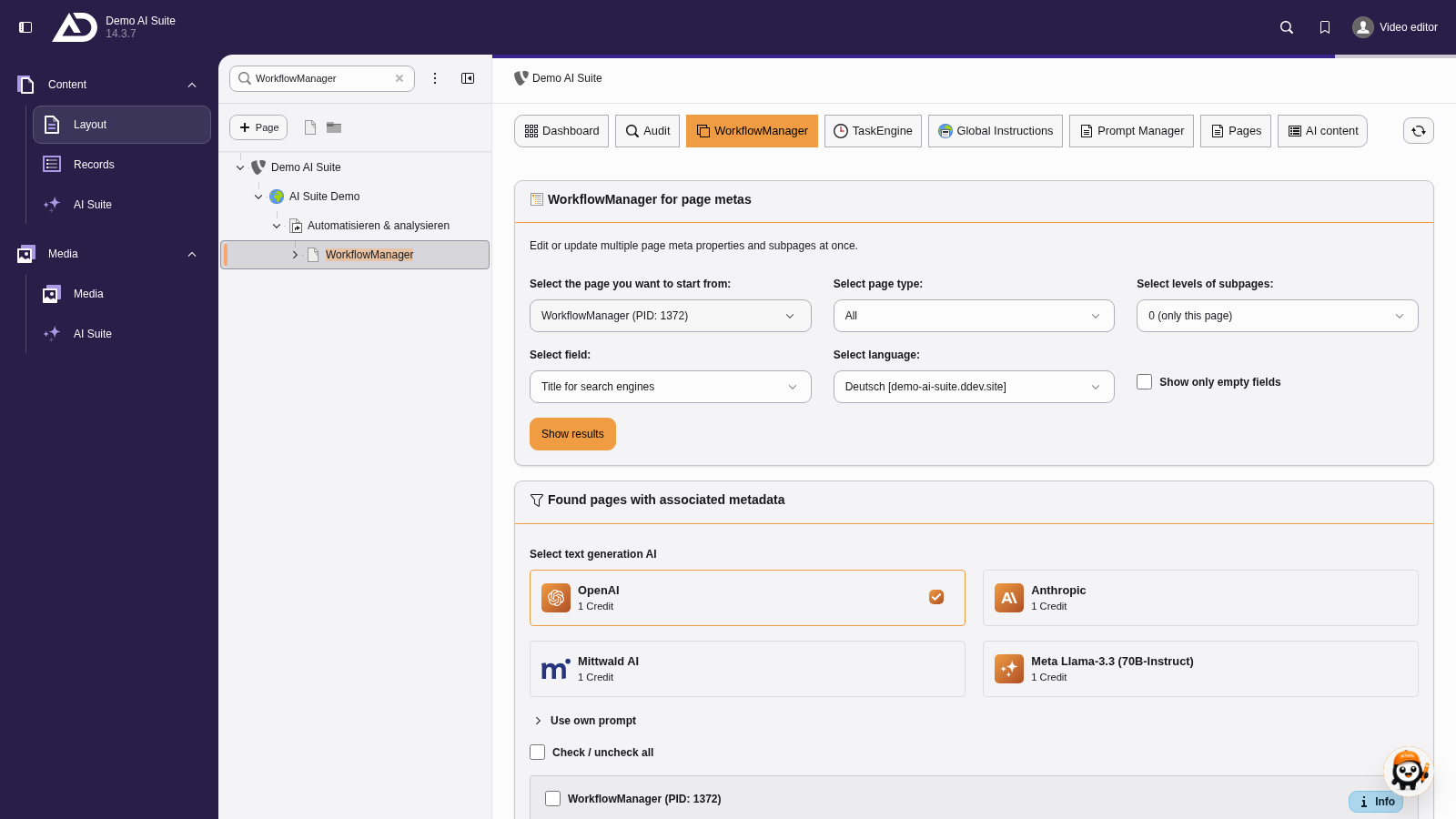
We open the WorkflowManager for page metadata with a right click on a page in the page tree, under “AI Suite”.
-
Show larger version
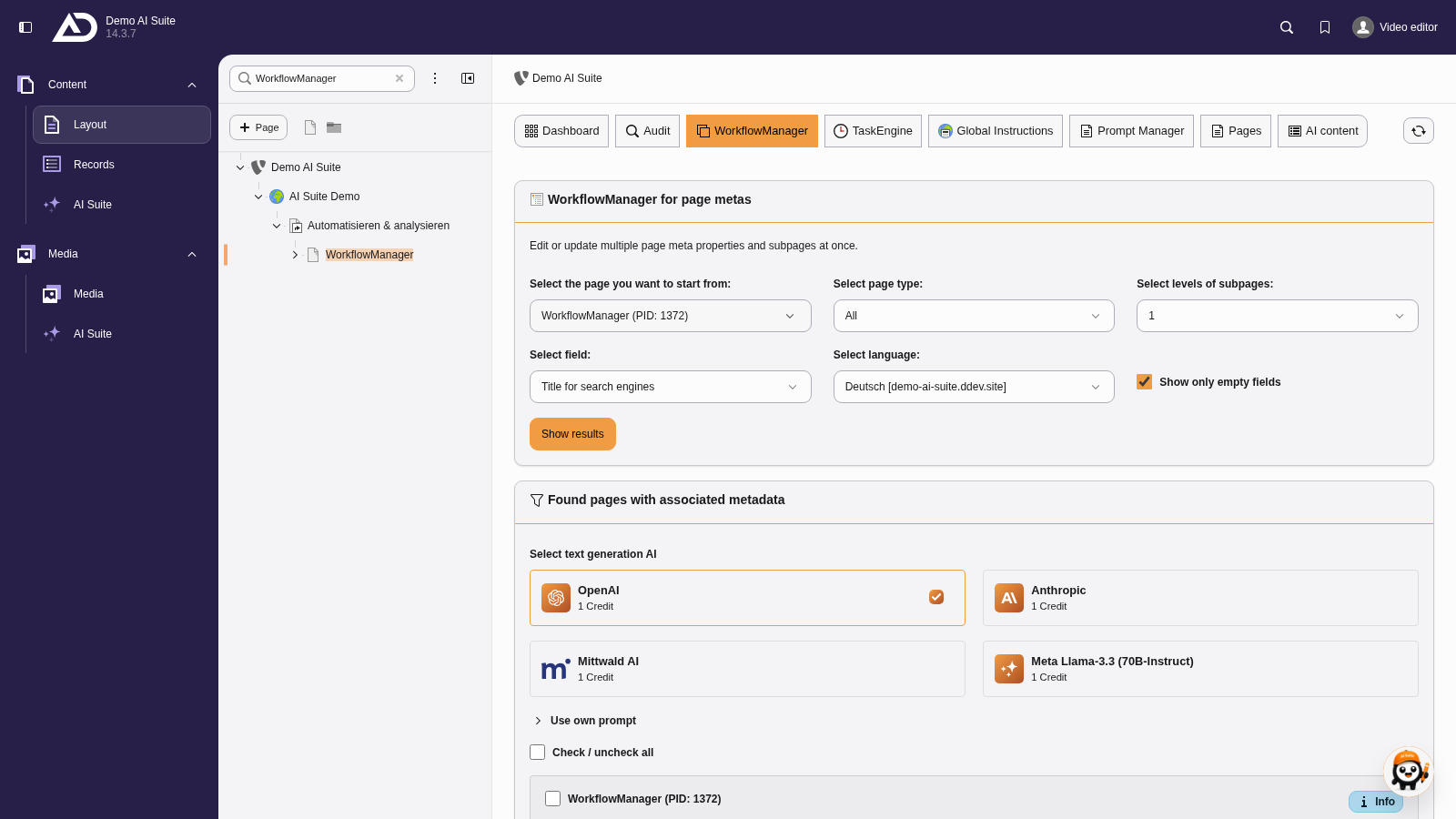
At the top are the start page, the page type and the subpage levels, below them field, language and the option for empty fields. We include one level of subpages, keep the field “Title for search engines” and show empty fields only.
-
Show larger version
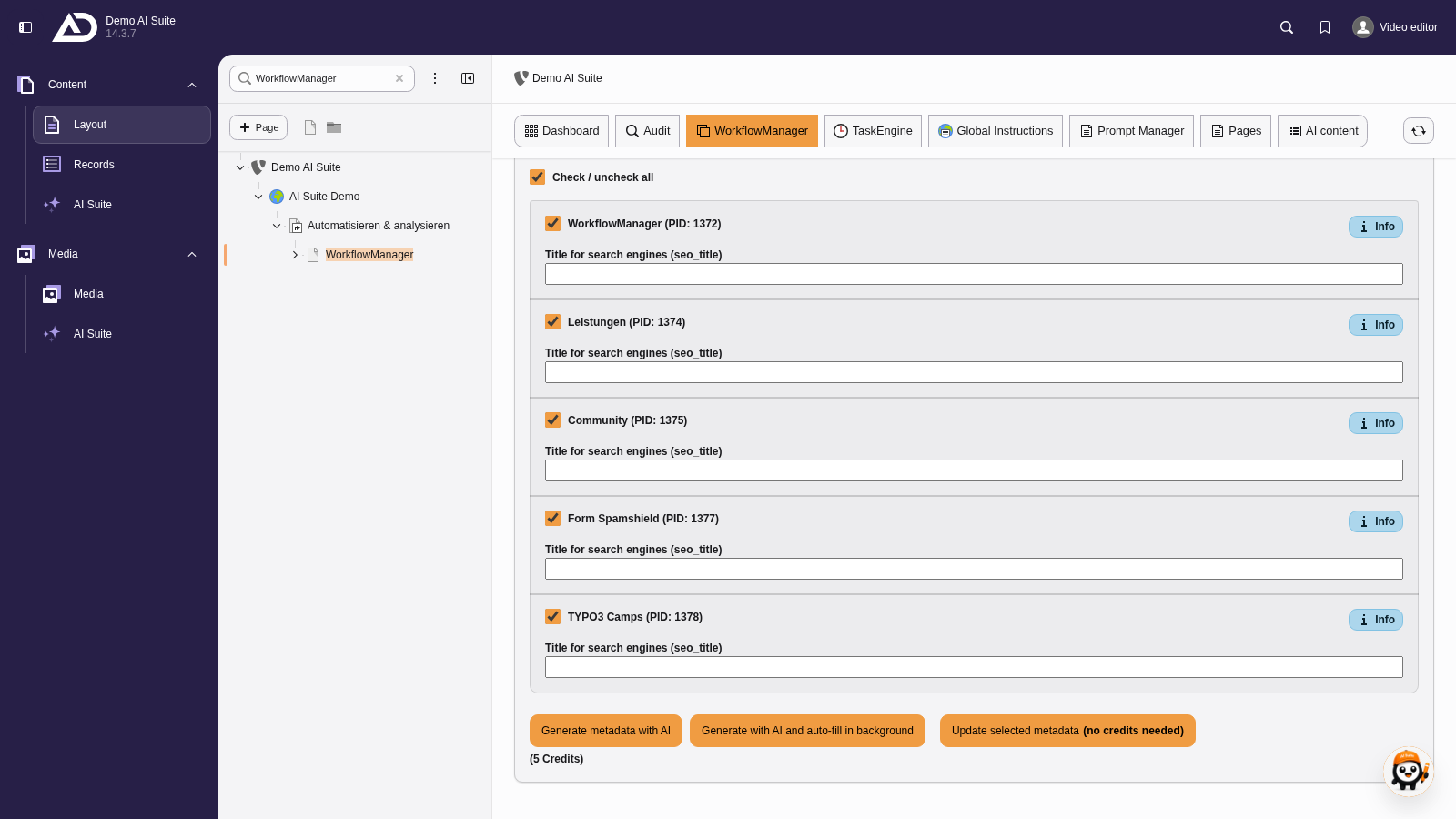
We choose an AI model. A custom prompt is optional. Then we select all pages found.
-
Show larger version
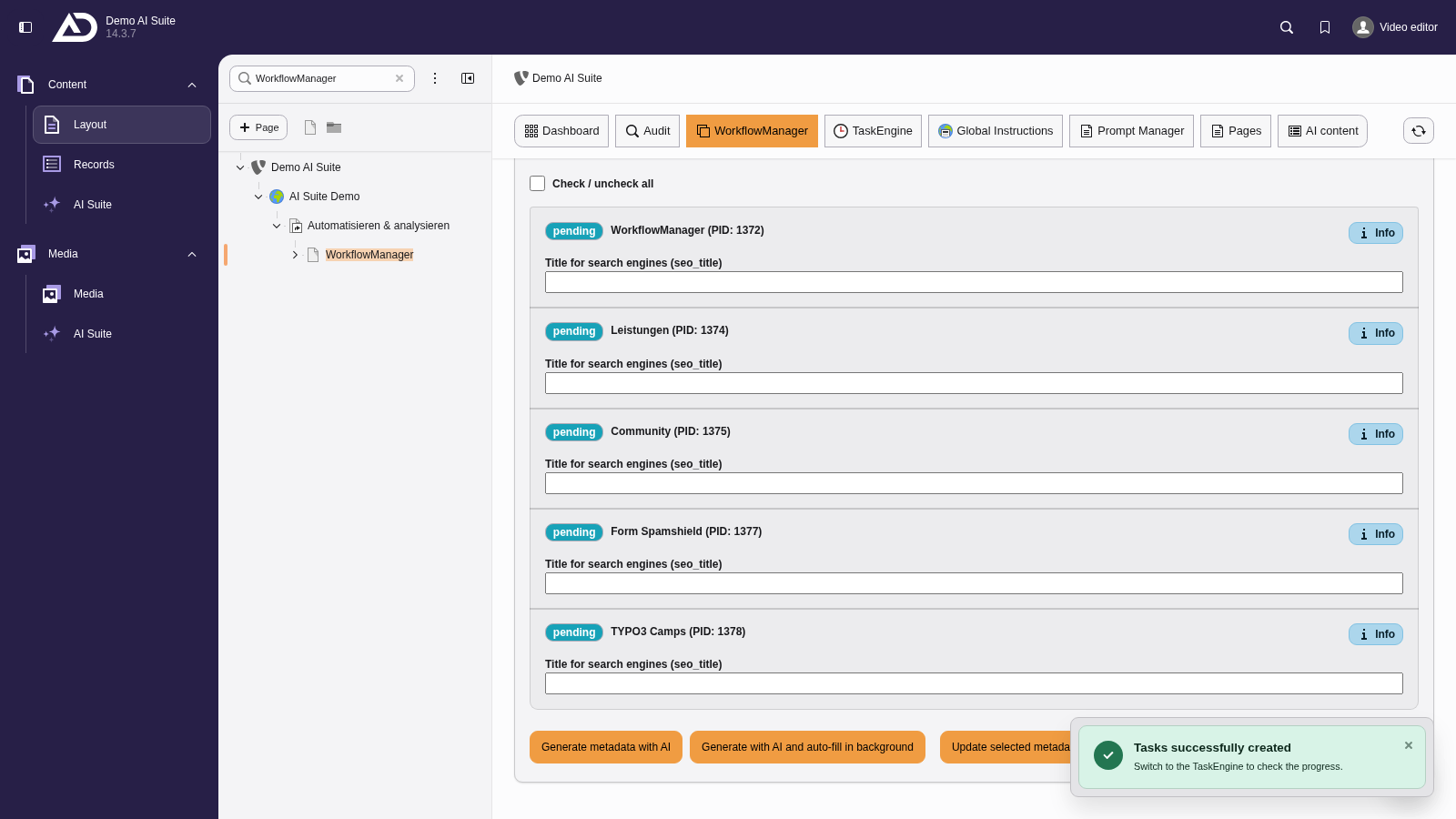
The AI Suite creates a task for each page. We then review the suggestions in the TaskEngine.
-
Show larger version
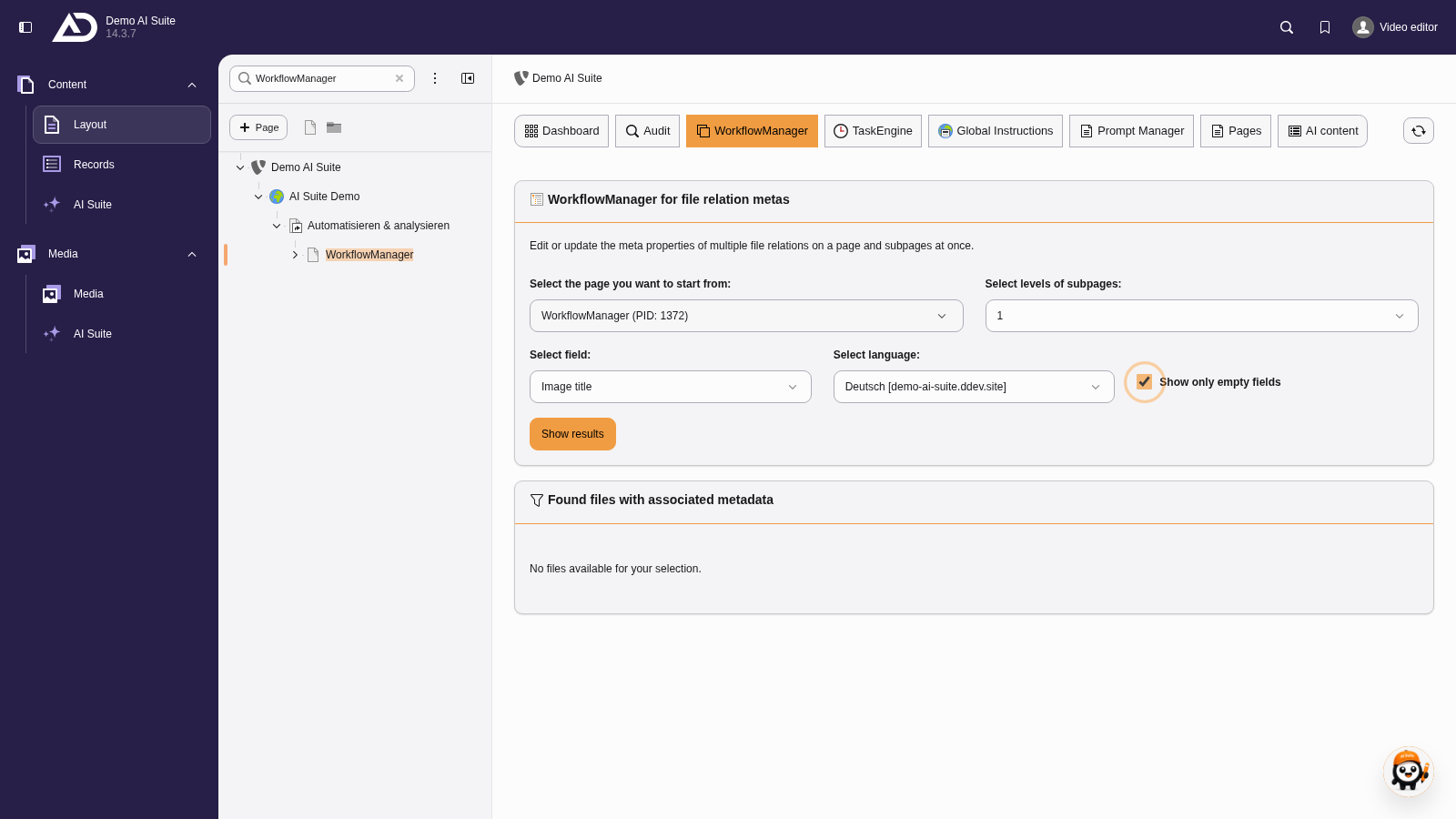
At the top are the start page and the subpage levels, below them field, language and the option for empty fields. We include one level of subpages, keep the field “Image title” and show empty fields only.
-
Show larger version
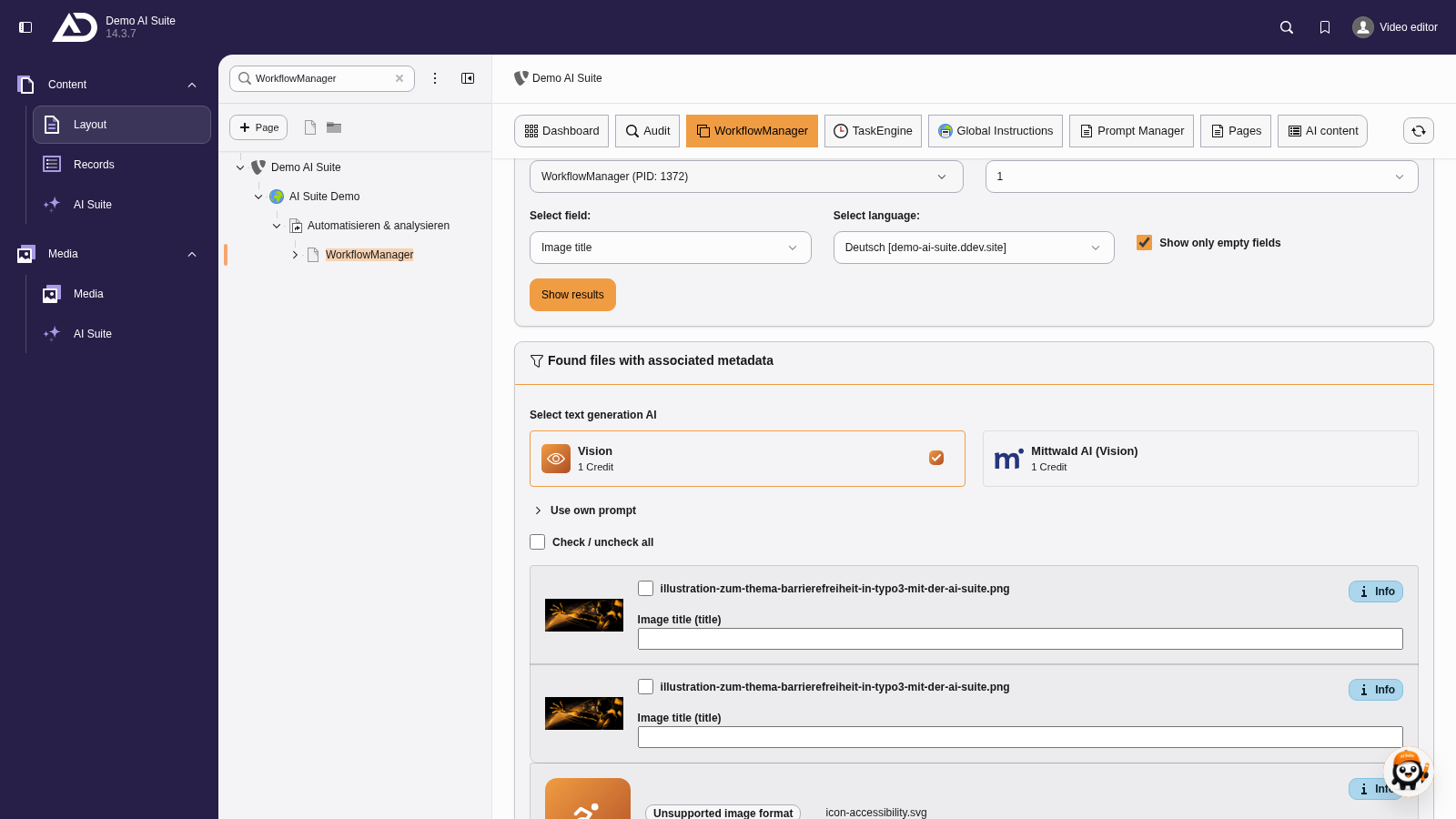
A vision-capable model looks at the images. A custom prompt is optional. Then we select all references.
-
Show larger version
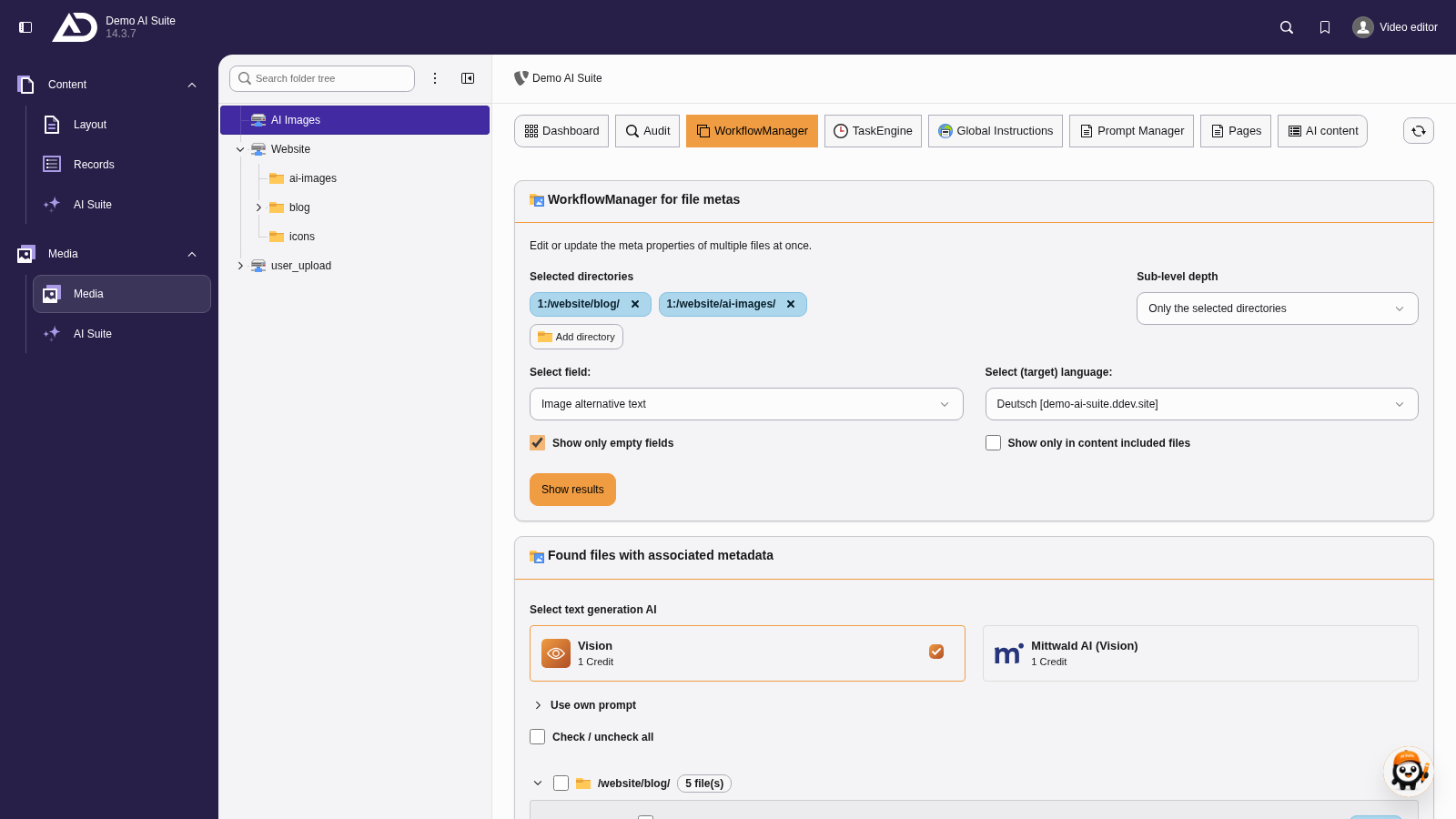
Next to “blog”, we add the “ai-images” folder. On the right is the subfolder depth, below are field and language plus the options for empty fields and files used in content. We choose the field “Image alternative text” and show empty fields only.
-
Show larger version
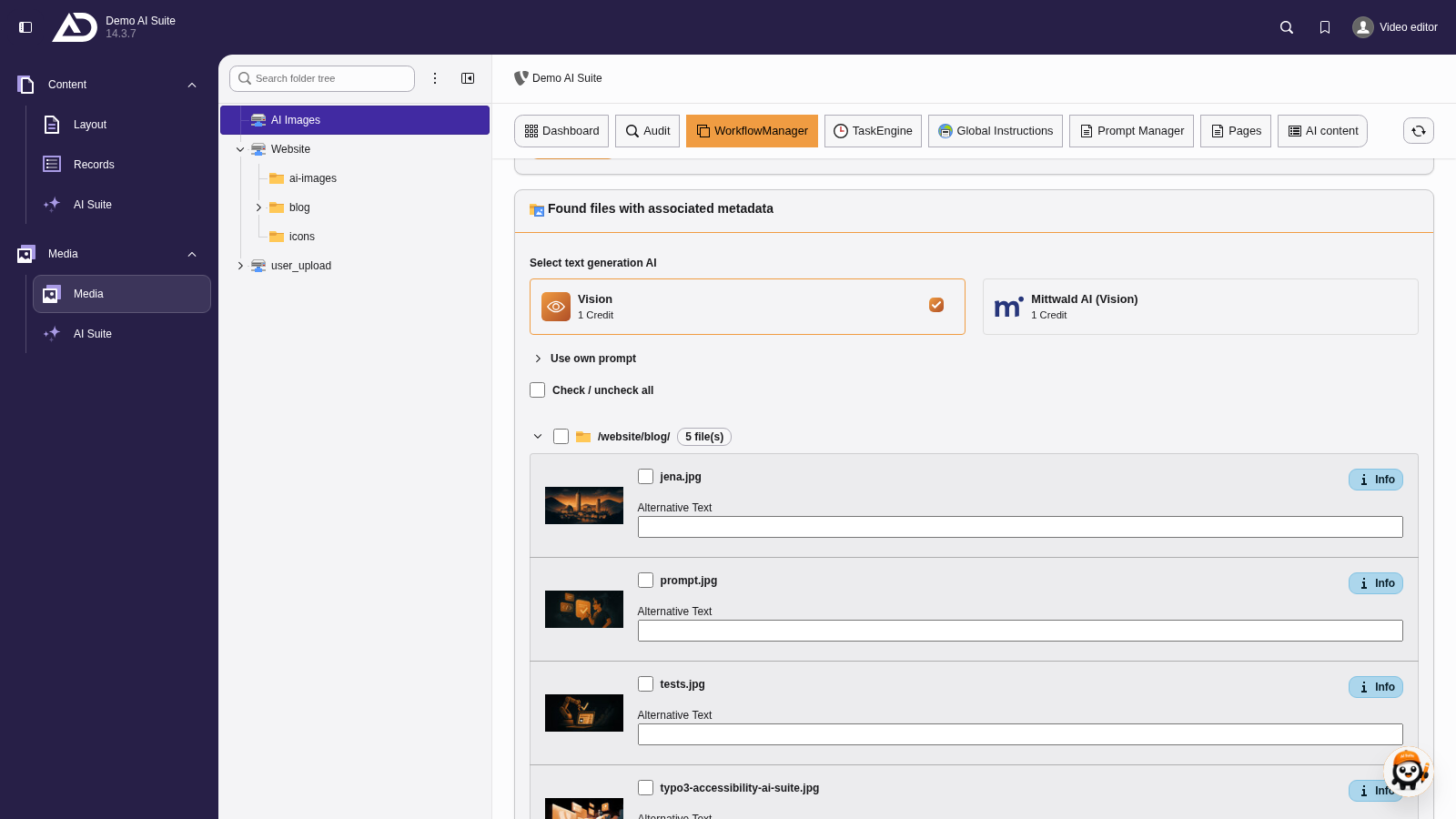
The files found are grouped by folder. Each group can be collapsed and expanded.
-
Show larger version
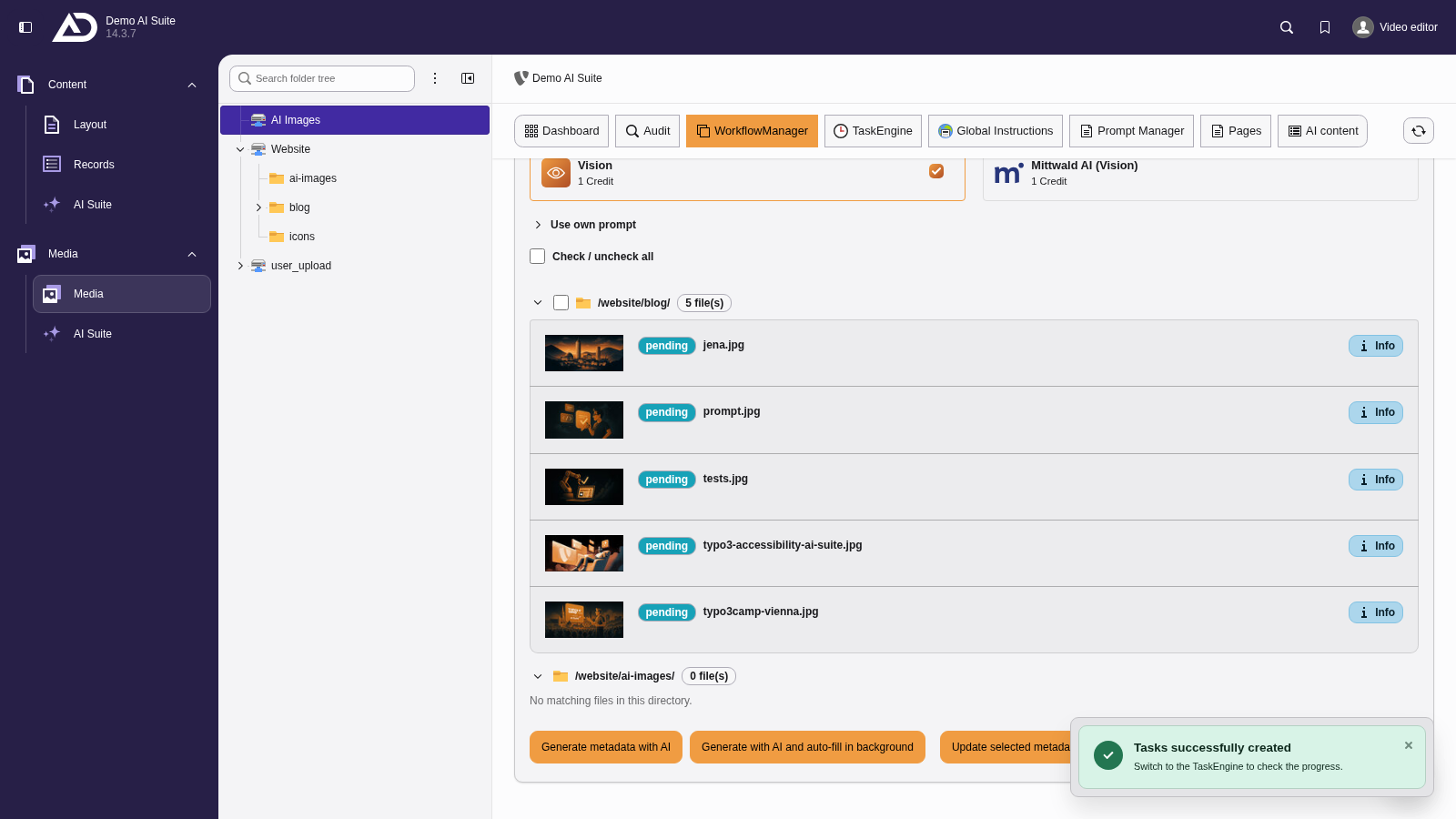
With the vision-capable model “Vision”, we select all files and create the tasks. They start out as “pending”.