Translation of Content
With the AI Suite, you translate the content of your TYPO3 site with various AI models and translation services such as DeepL. The features build on the familiar TYPO3 workflow, so you quickly find your way around.
You translate individual content elements including image metadata or entire pages with all content and page properties in one step. In the “Records” module, you also translate records such as news.
If you like, the AI Suite translates content elements into all active languages automatically when saving. An administrator has to activate and set up this feature first.
With the glossary, you define how certain terms are translated, so that they are the same everywhere. In the rich text editor, you convert texts into “Easy Language”. Administrators with server access can also translate the XLF files of their extensions.
-
Show larger version
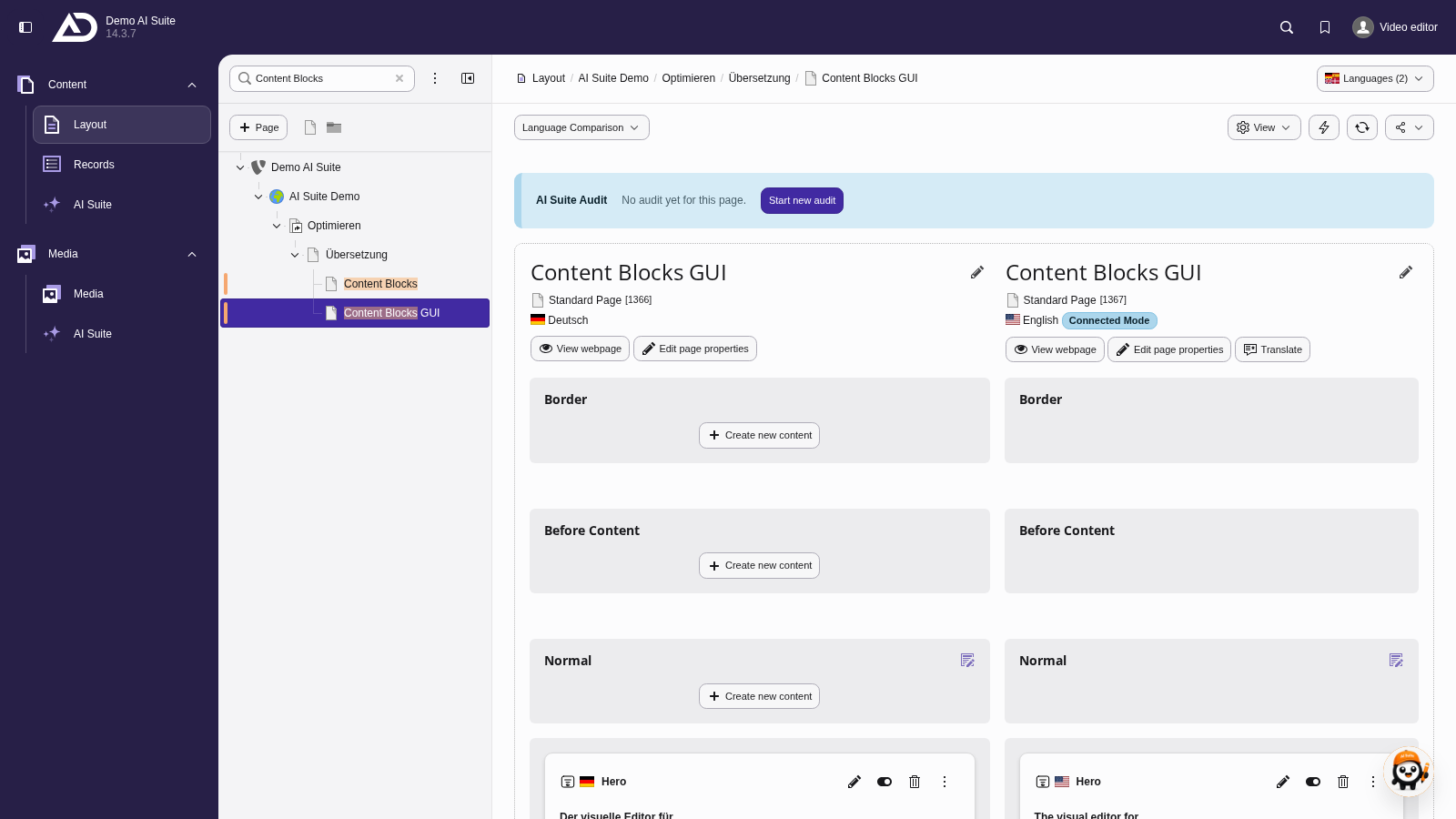
The language comparison with all languages shows German and English side by side. Elements are still missing in the English column.
-
Show larger version
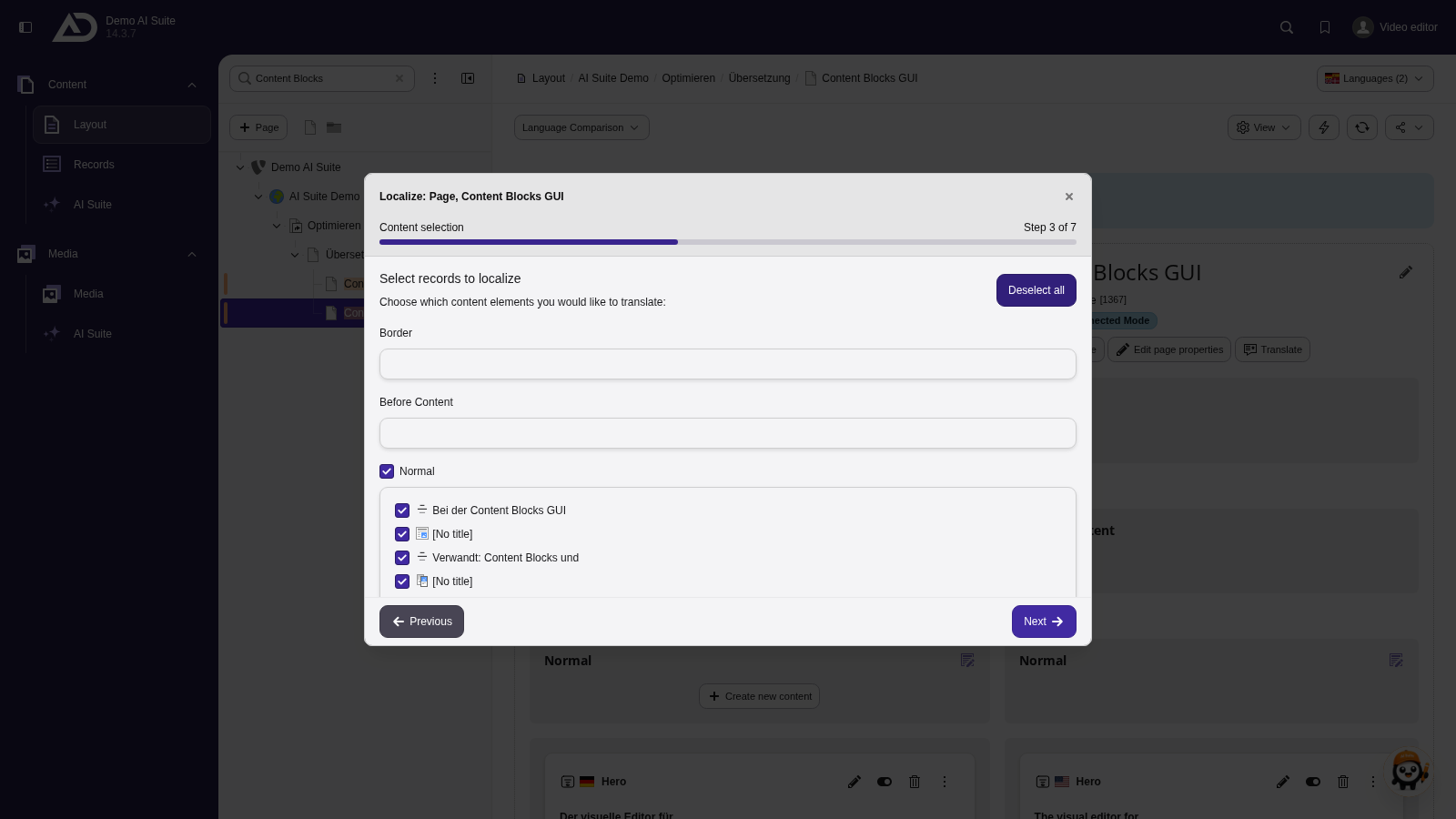
The TYPO3 wizard lists the missing elements. All of them are already selected.
-
Show larger version
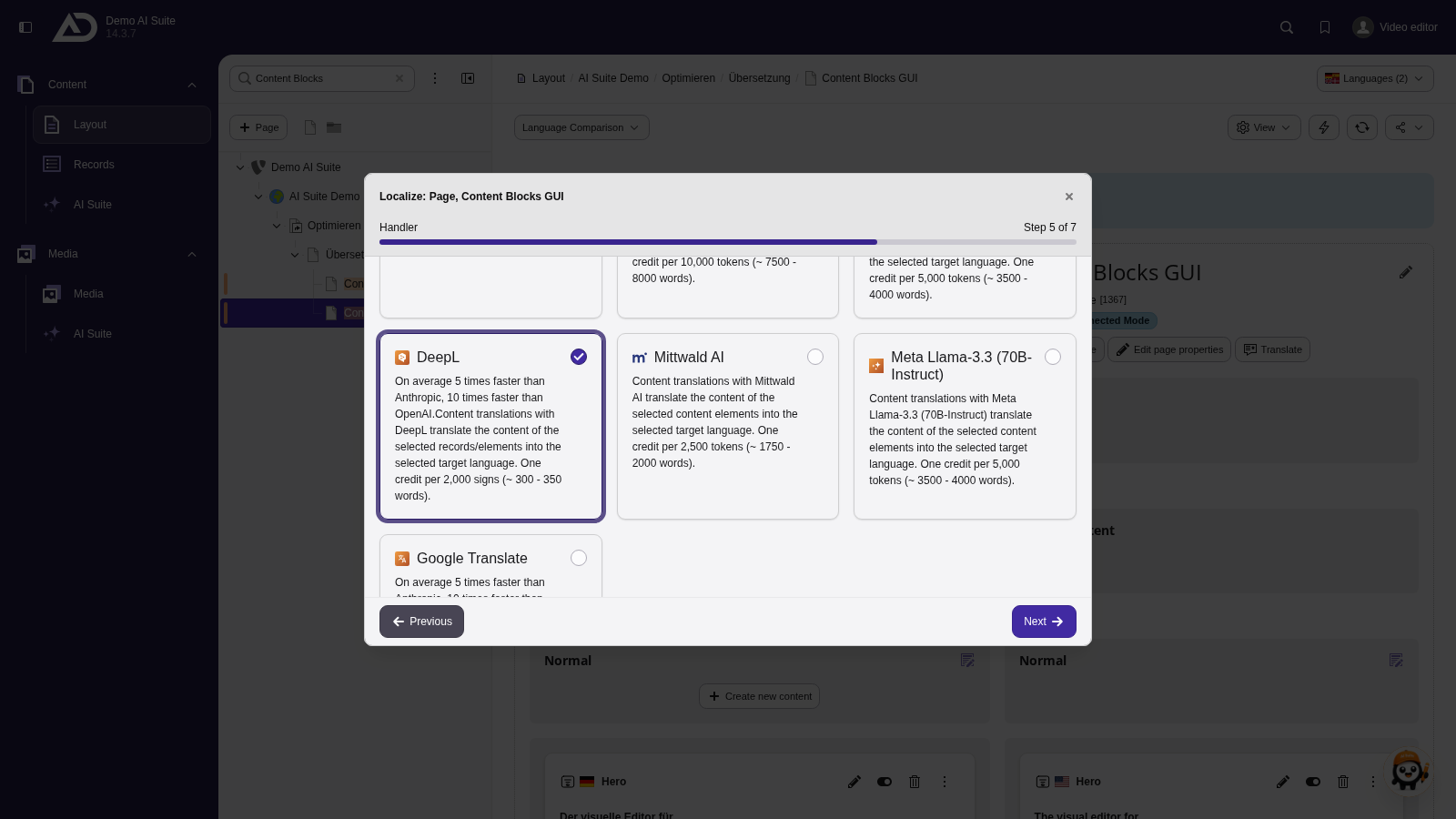
Next to manual translation, the AI Suite offers its translation models. We choose one.
-
Show larger version
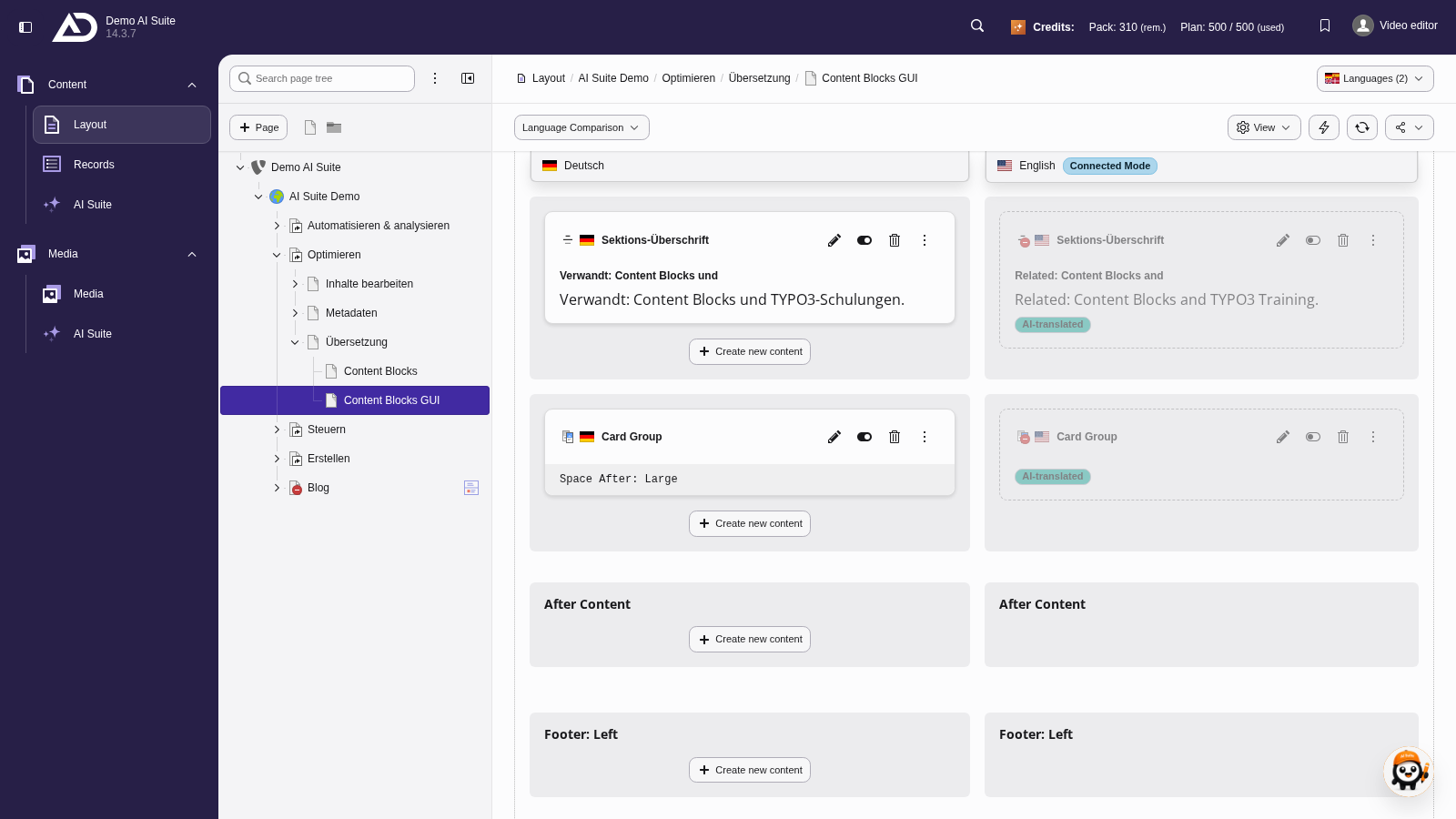
The new English elements are created and, as usual in TYPO3, deactivated for now.
-
Show larger version
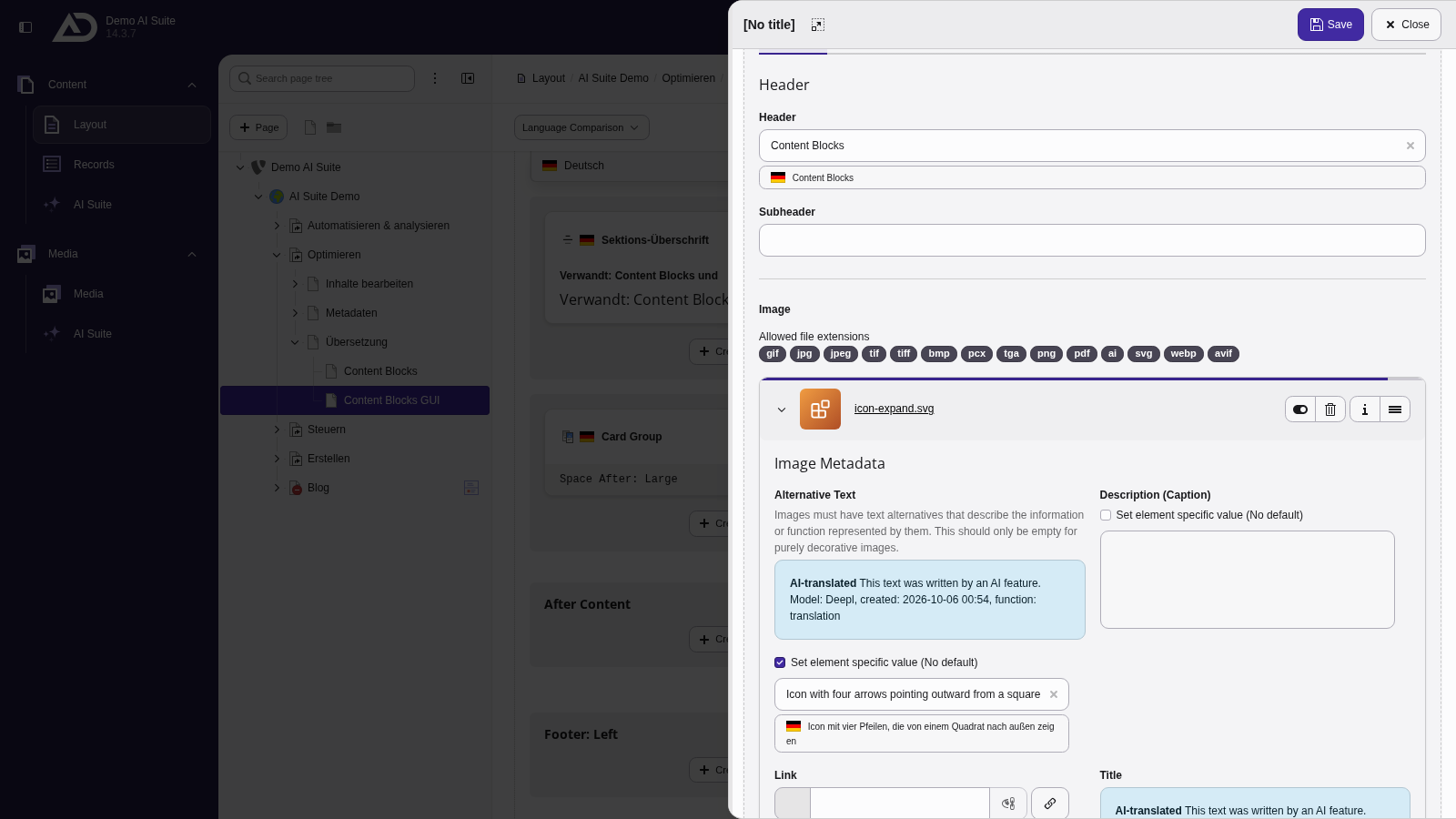
The titles and alternative texts of the images are translated as well.
-
Show larger version
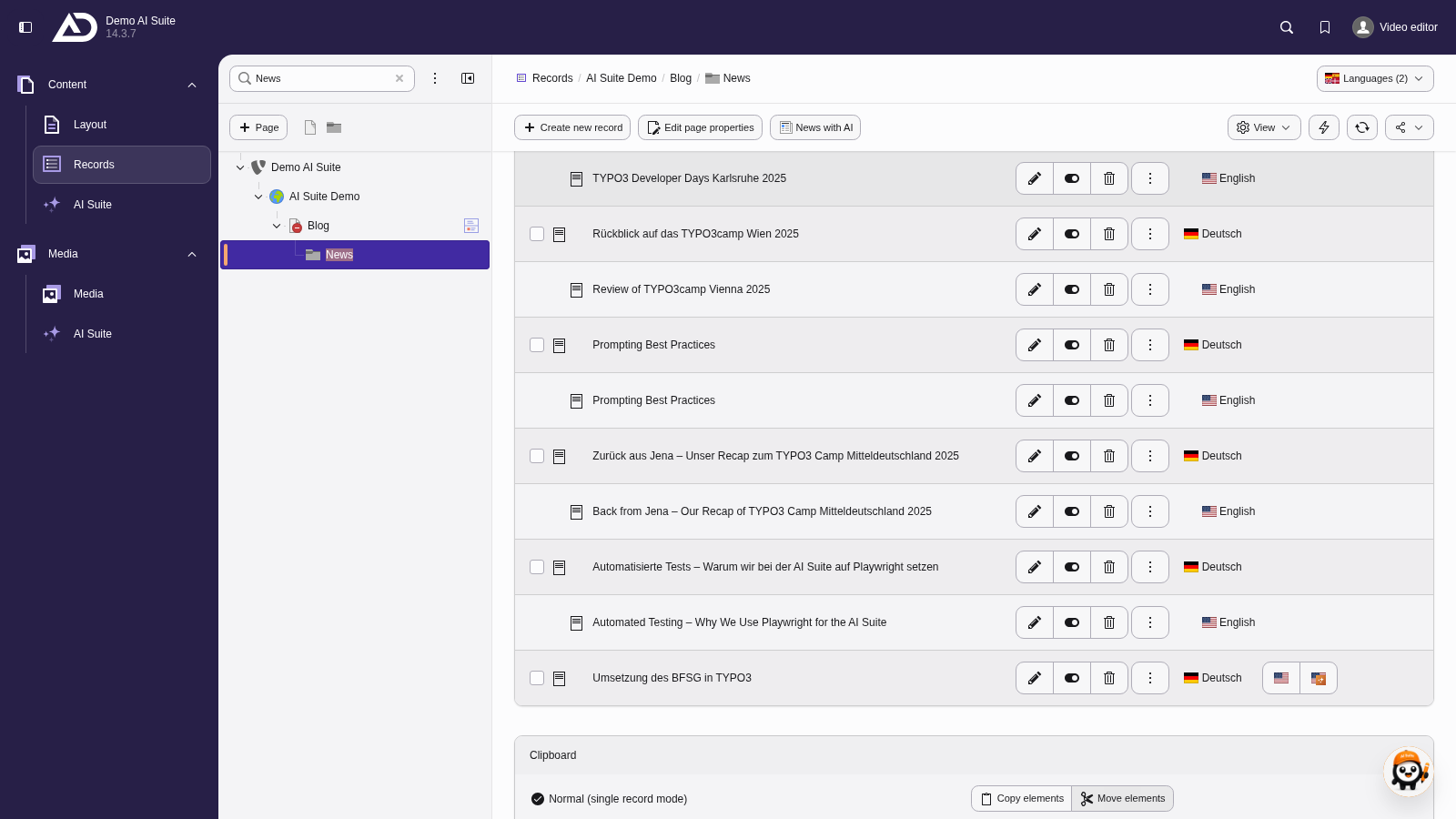
In the “Records” module, we show all languages in the “News” folder. Next to an article that is not translated yet is the flag with the AI Suite icon.
-
Show larger version
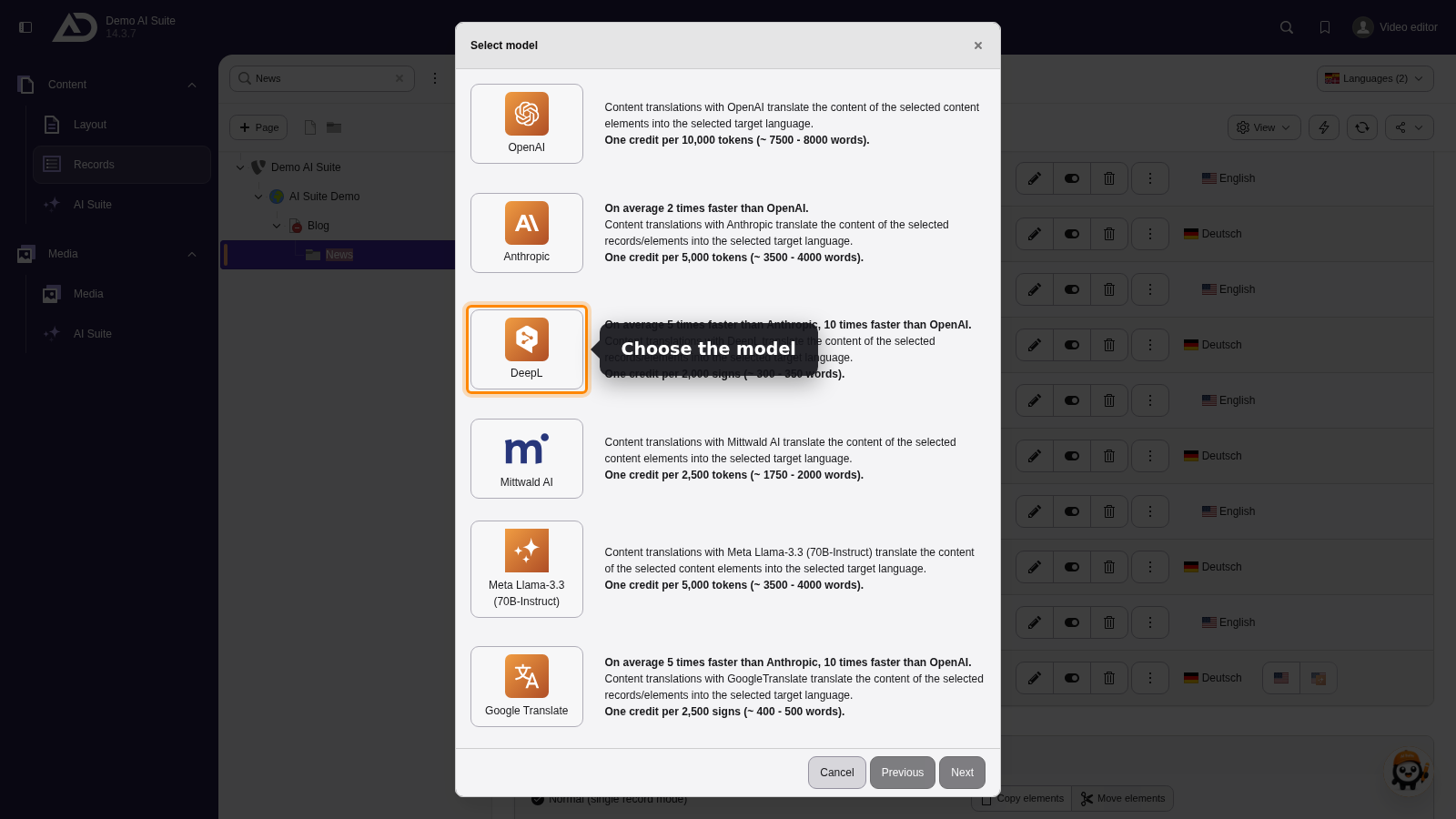
Choosing a model starts the translation.
-
Show larger version
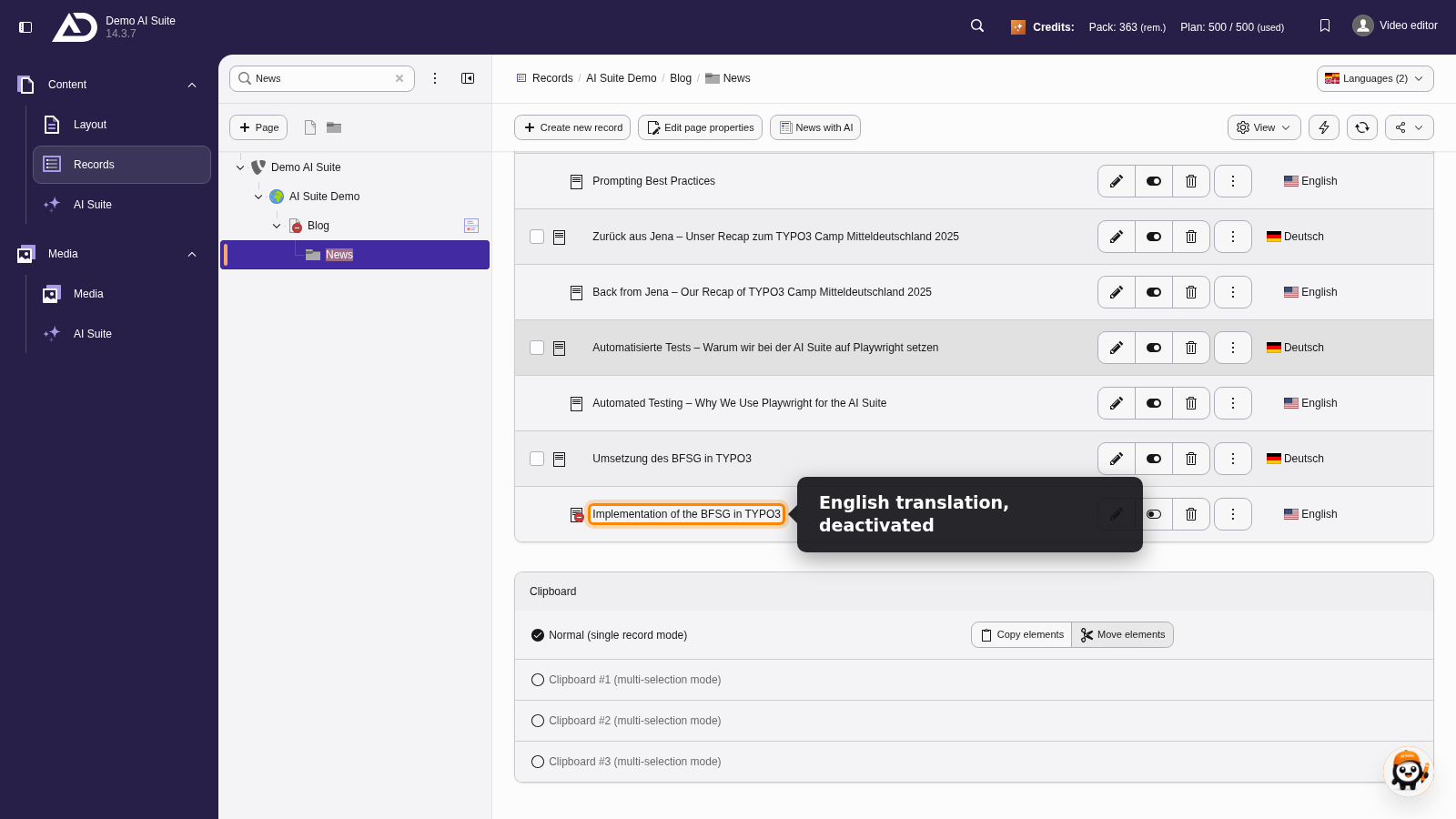
The English version is created and stays deactivated for now. We open it right away.
-
Show larger version
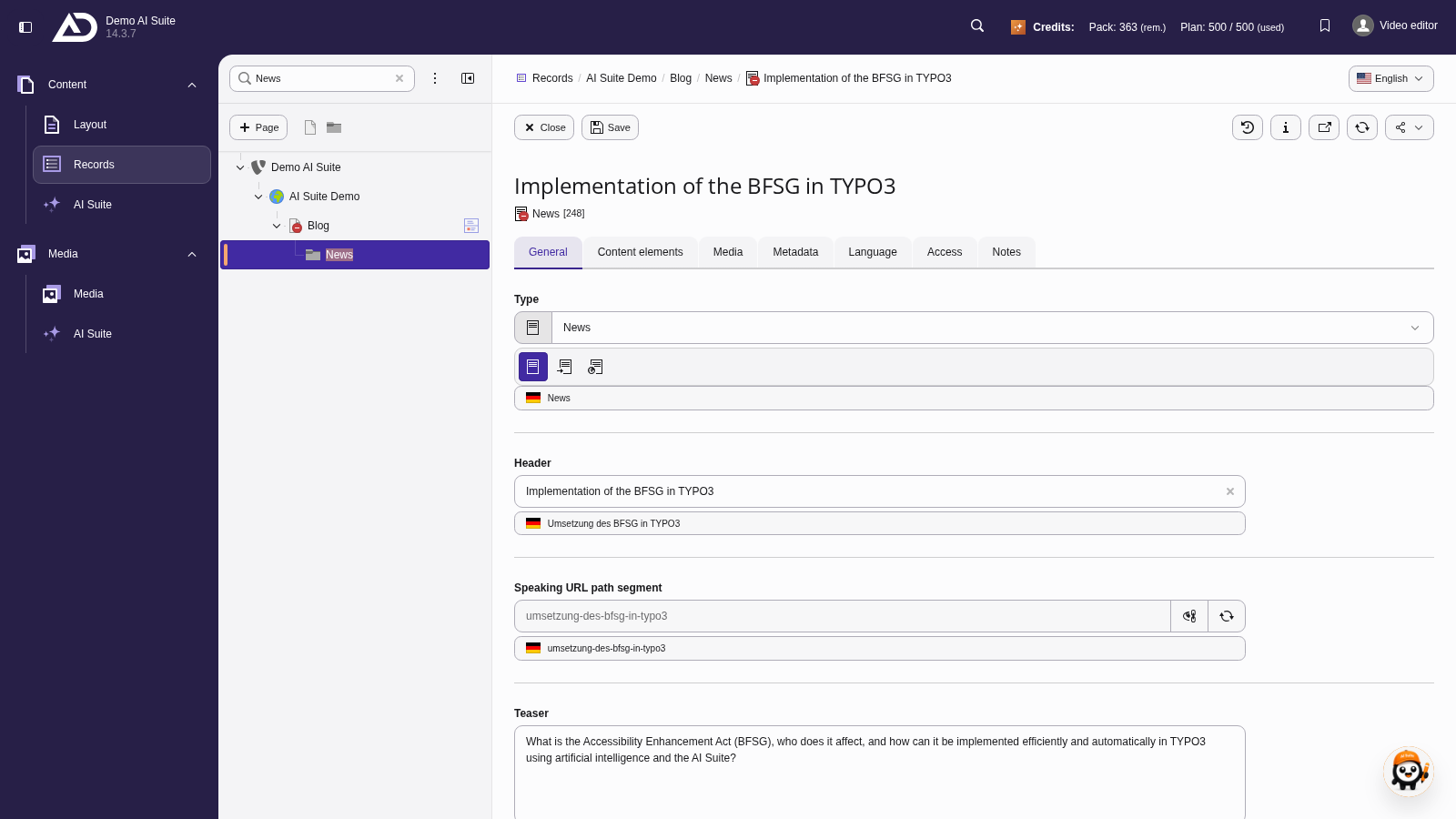
In the editing form, we check the translated article.
-
Show larger version
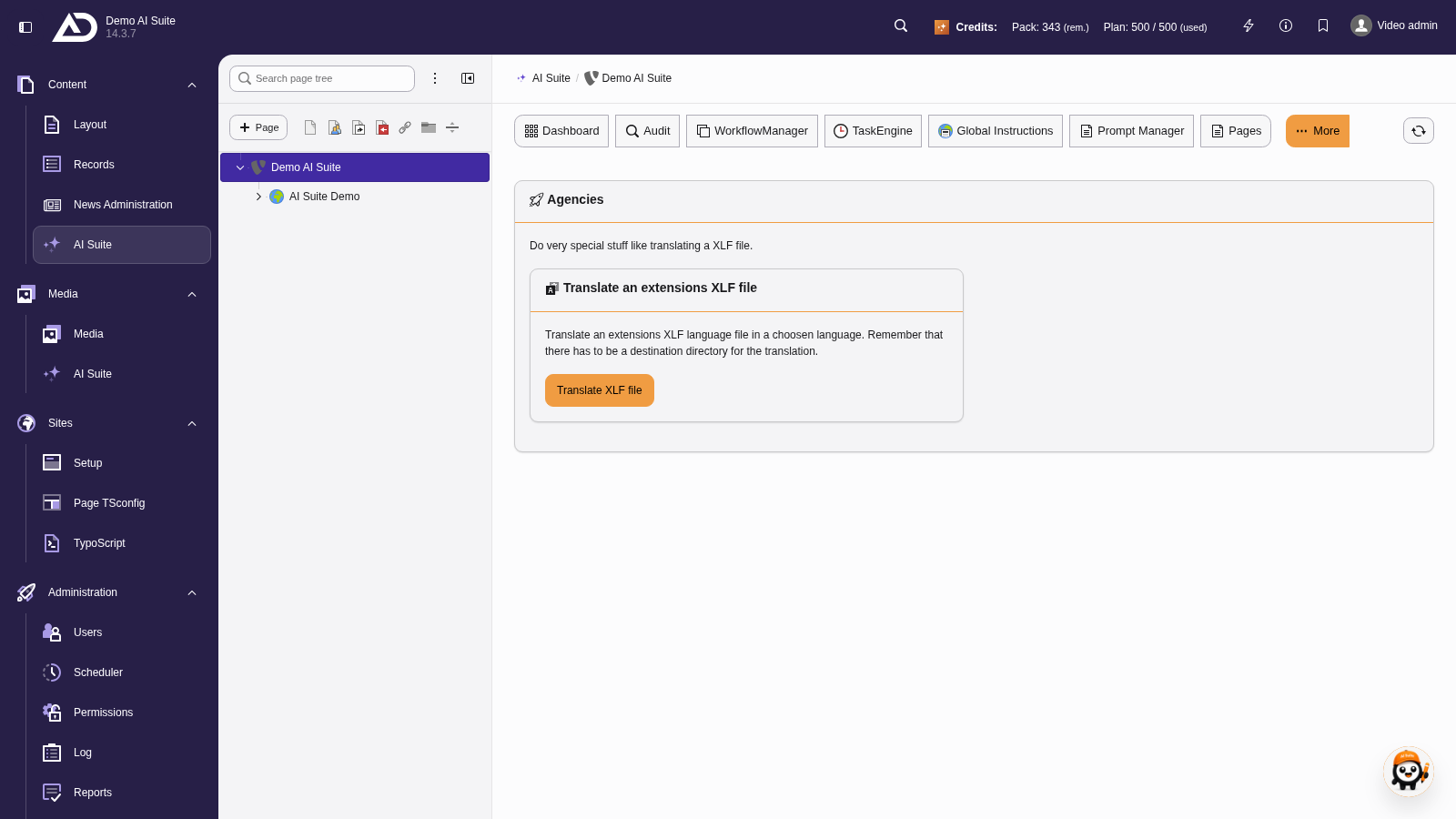
In the backend module “AI Suite”, we choose the menu item “Agency” (in a narrow view via the “More” menu). There we click “Translate XLF file”.
-
Show larger version
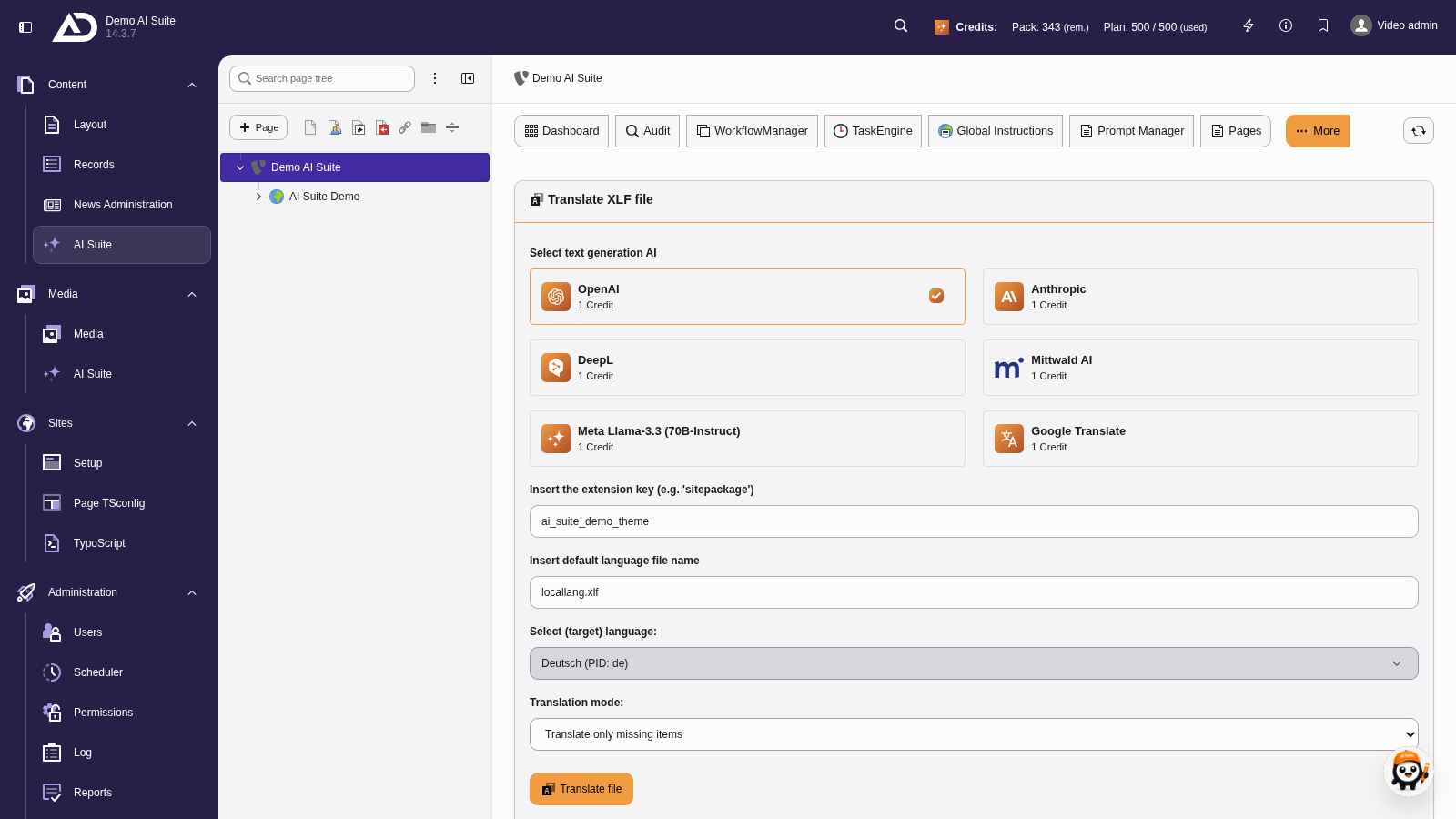
We choose a model, enter the extension key and file name, choose German as the target language and the mode “Translate only missing items”.
-
Show larger version
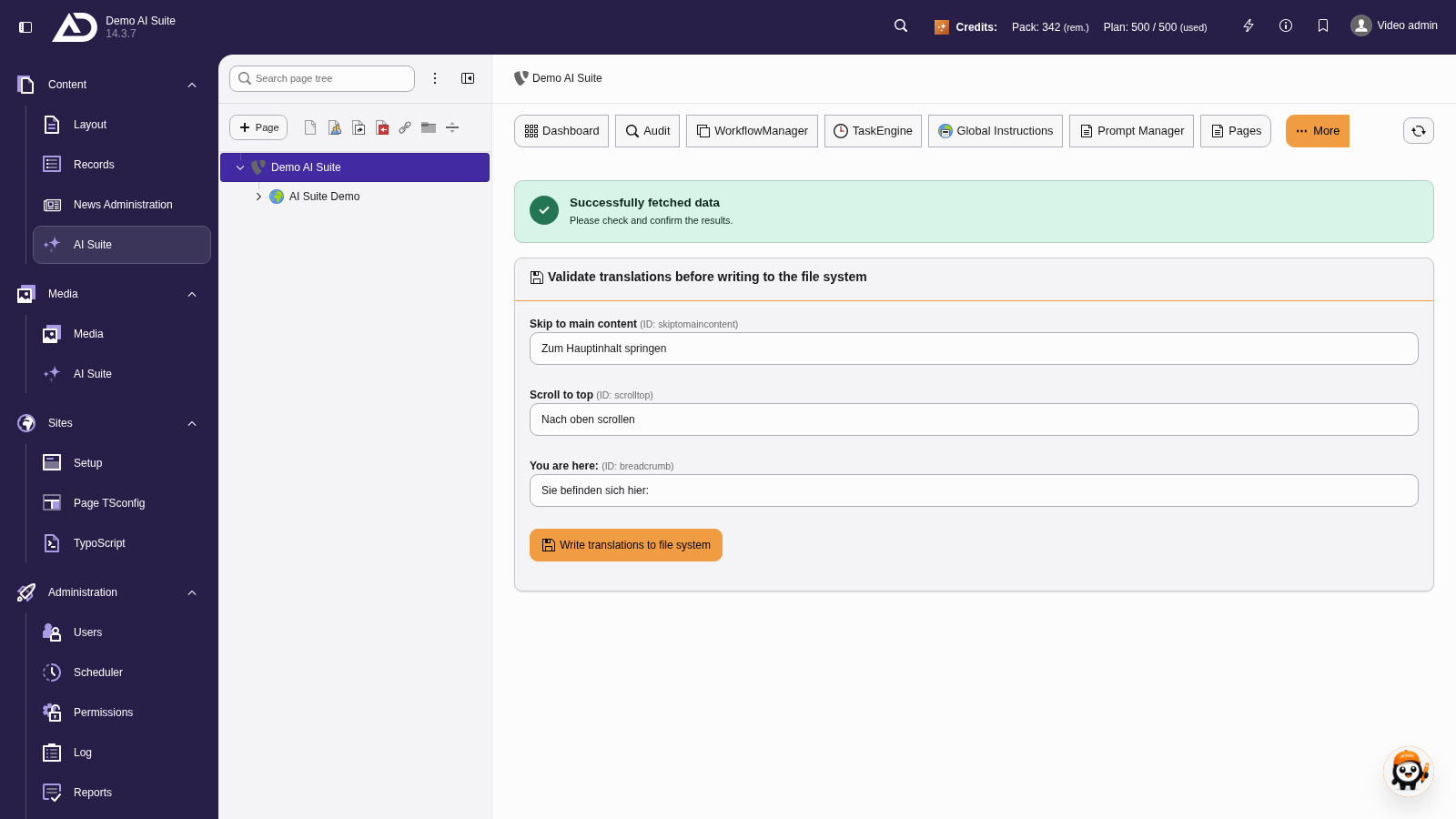
Each label shows the source text, the ID in brackets and the translation, which can be adjusted right away.
-
Show larger version
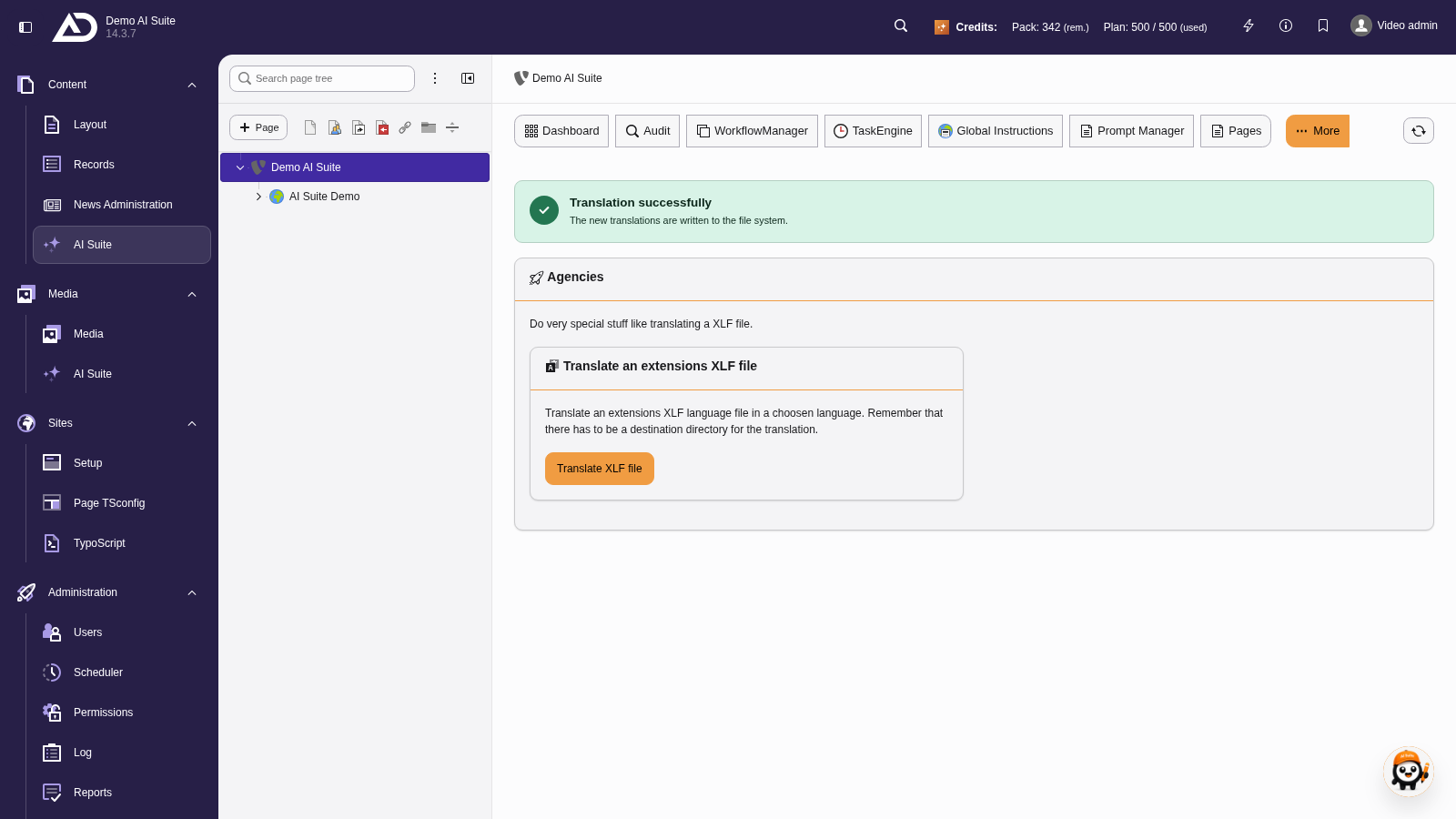
With “Write translations to file system”, the translations go into the language file.