Translation of content elements (+ image metadata)
With the AI Suite, you translate existing content elements using various AI models and translation services. The feature extends the workflow you know from TYPO3 only at specific points, so you can quickly find your way around.
The following section explains the procedure step by step.
1. Where can I find the function?
To access the translation function (similar to the TYPO3 standard), follow these steps:
- Switch to the Page module
- Select the page whose content you want to translate
- Choose “Language Comparison” in the top dropdown of the navigation
- Select “All Languages” in the bottom dropdown of the navigation
- If necessary, first create a translation of the page
- Click “Translate”
-
Show larger version
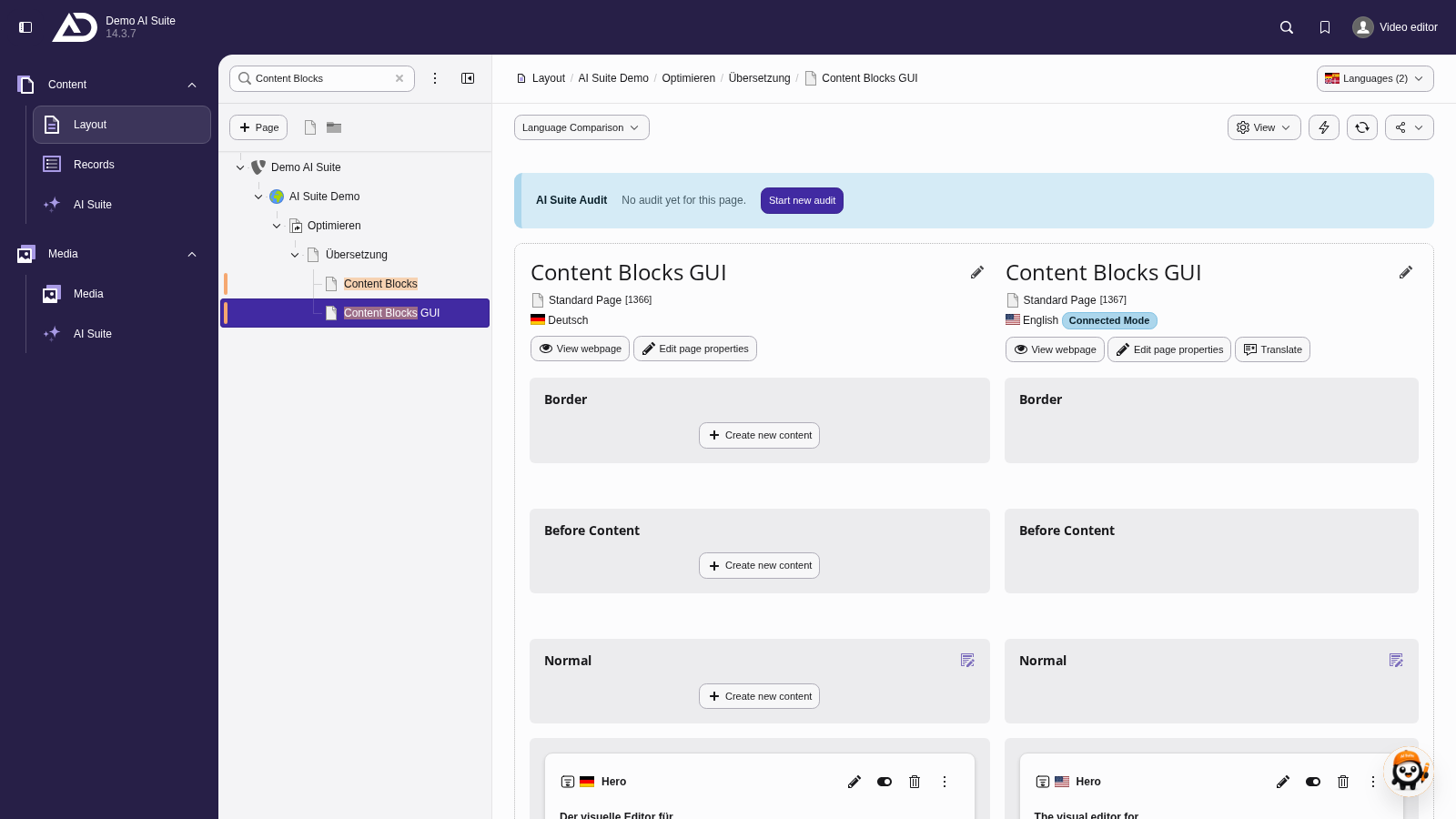
The language comparison with all languages shows German and English side by side. Elements are still missing in the English column.
-
Show larger version
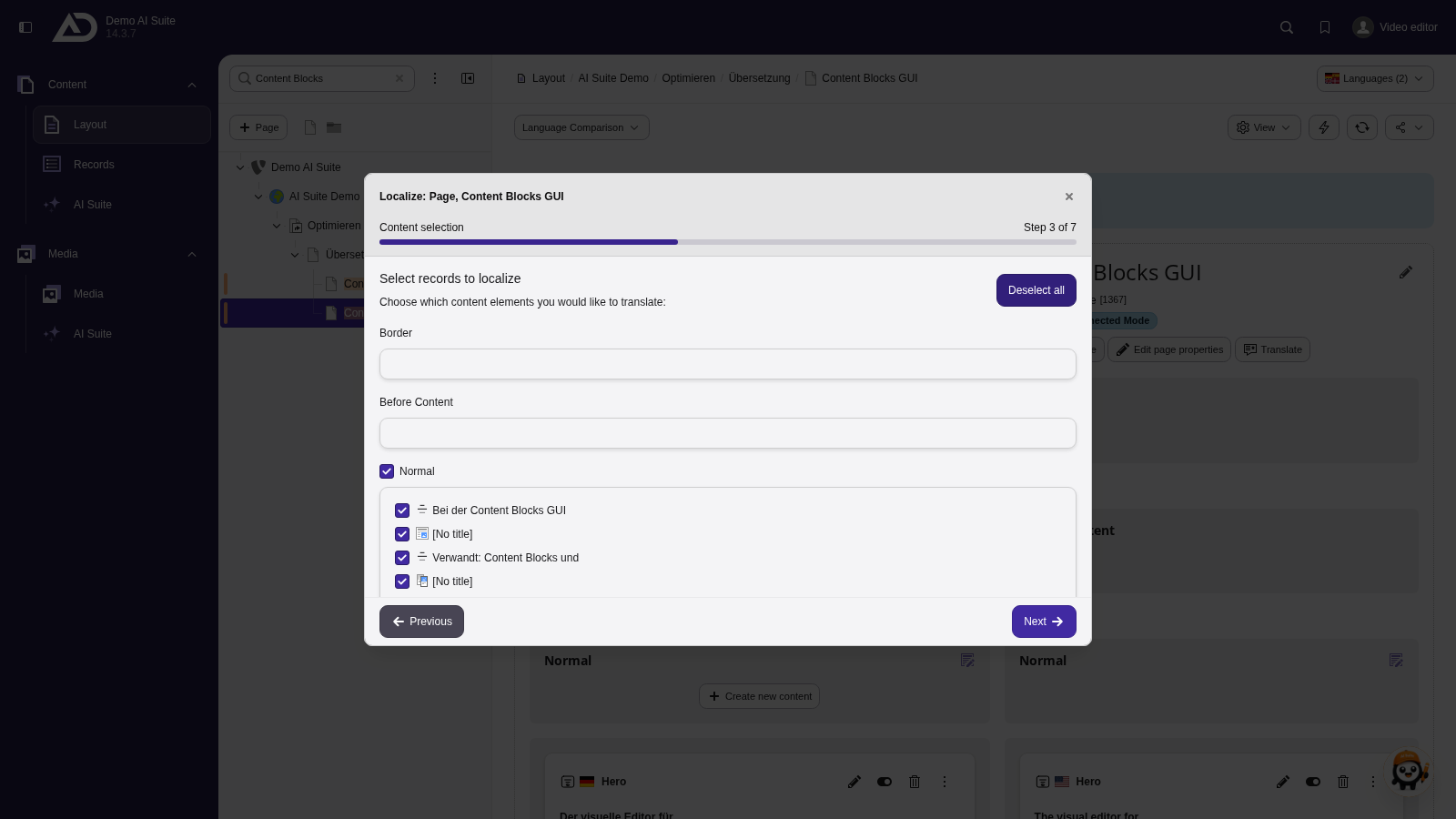
The TYPO3 wizard lists the missing elements. All of them are already selected.
-
Show larger version
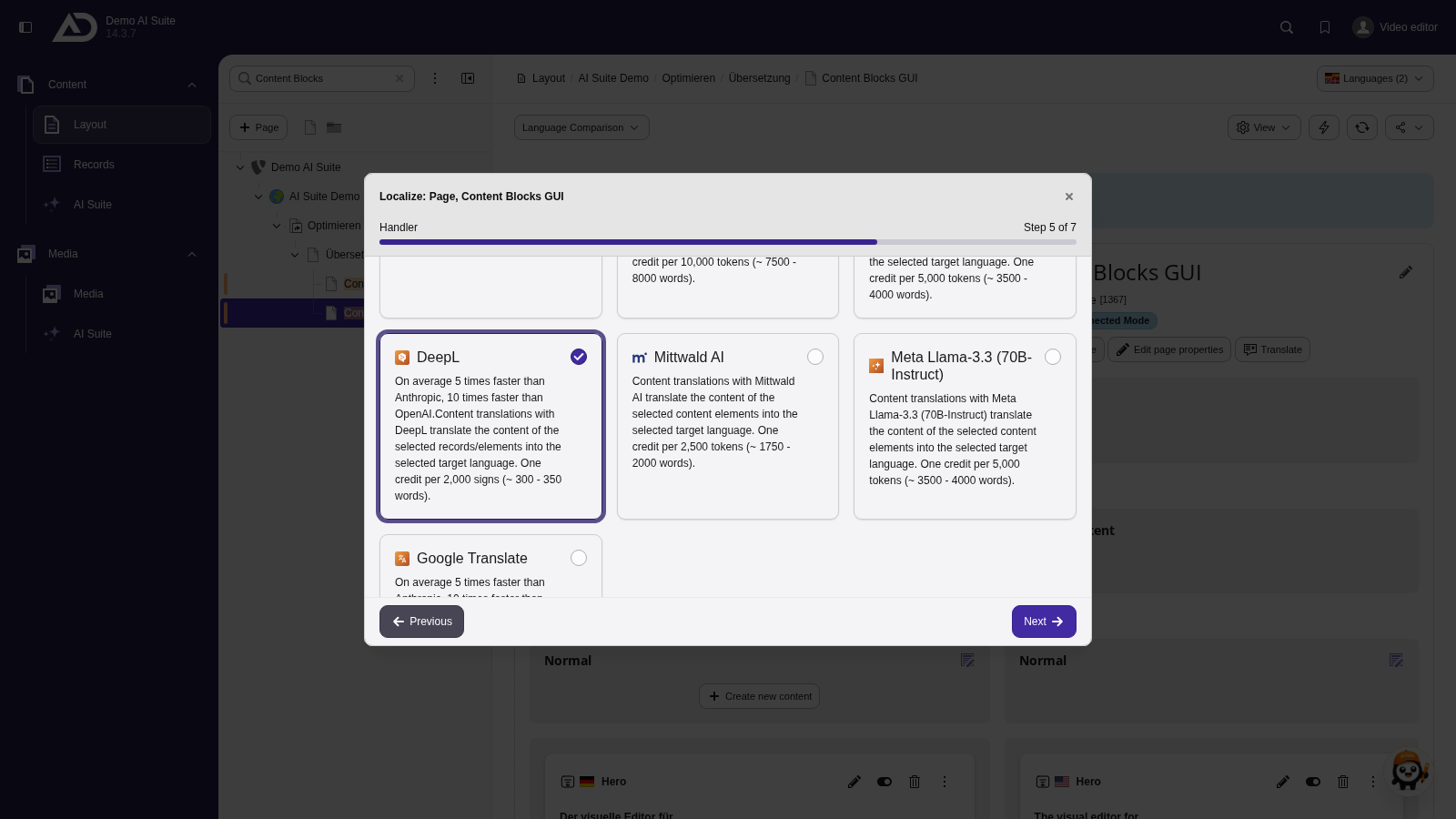
Besides manual translation, the AI Suite offers its translation models. We choose one.
-
Show larger version
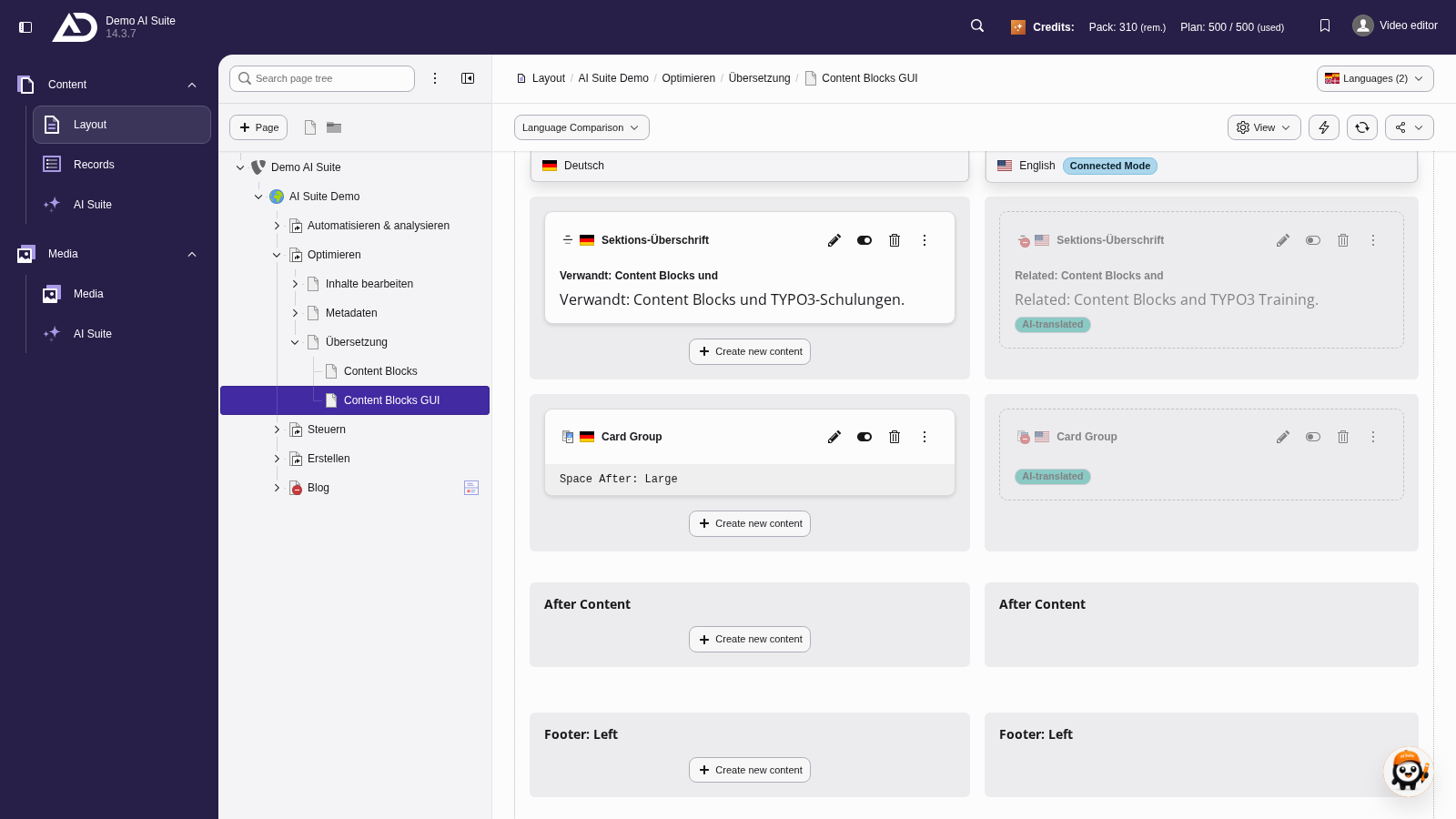
The new English elements are created and, as usual in TYPO3, deactivated for now.
-
Show larger version
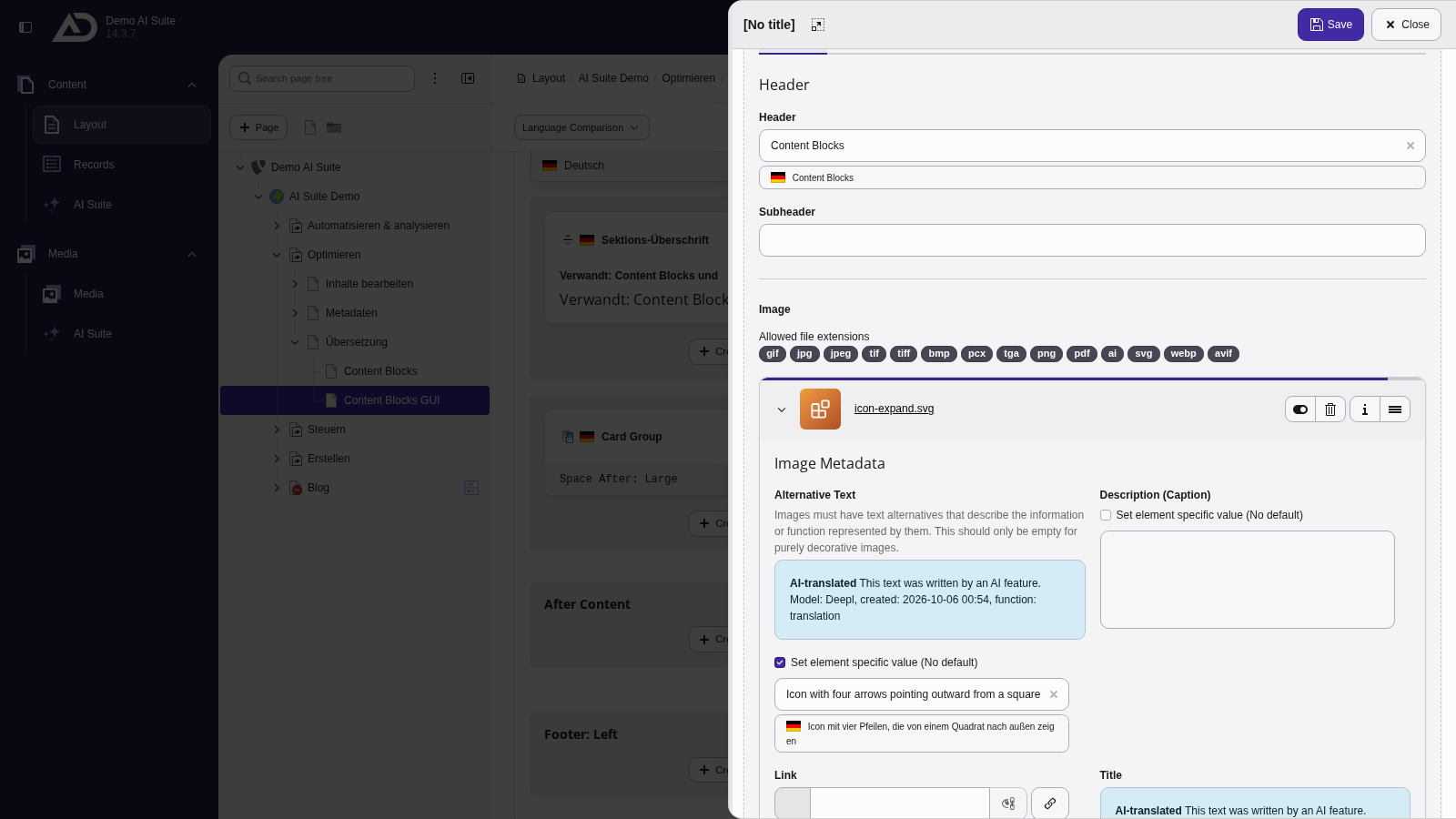
The titles and alternative texts of the images are translated as well.
 Fallback is the TYPO3 default behavior
If a problem occurs during the translation, TYPO3 creates the content untranslated in the new language as usual.